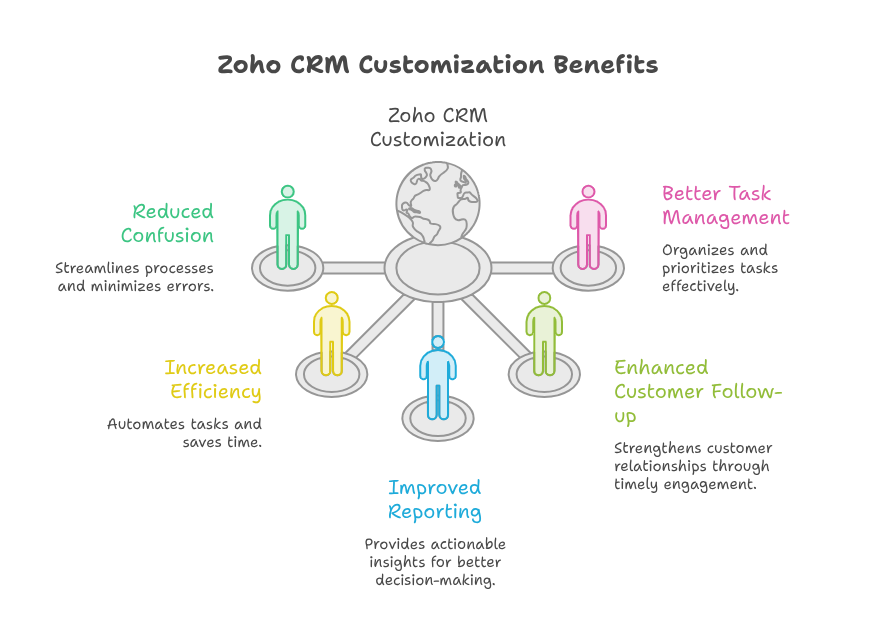
A practical Zoho CRM customization guide helps businesses shape their CRM around real workflows. This Zoho CRM customization guide also reduces confusion, delays, and repeated manual work. Instead of forcing teams into fixed processes, Zoho CRM can support how they already sell. It can also improve reporting, customer follow-up, and task management.
Every business has different sales stages, customer types, approval steps, and reporting needs. Therefore, a standard setup may not provide enough control.
What Does Zoho CRM Customization Mean?
Zoho CRM customization means changing the system to match your business structure and processes. You can adjust layouts, modules, fields, workflows, permissions, reports, and automation rules.
A strong Zoho CRM setup customization removes unnecessary steps from daily work. It also gives each user the right information at the right time. As a result, teams spend less time searching and more time serving customers.
Start with Clear Business Requirements
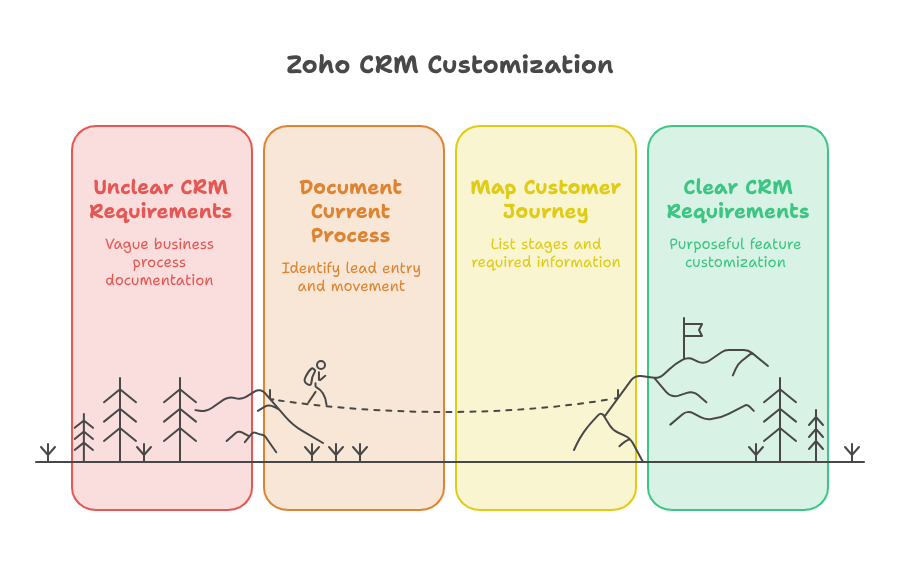
Before changing anything, document your current process. Identify how leads enter the business and move toward a sale. Also review how teams handle follow-ups, approvals, quotations, and customer support.
This step is essential for successful Zoho CRM setup customization. Without clear requirements, businesses often create too many fields or complicated workflows. That makes the system harder to use.
Map the Customer Journey
Start by listing each stage of the customer journey. Include lead generation, qualification, proposal, negotiation, closing, and after-sales support.
Then identify the information required at every stage. This approach helps you customize Zoho CRM features with a clear purpose. It also prevents random changes that provide little business value.
Customize Zoho CRM Modules and Fields
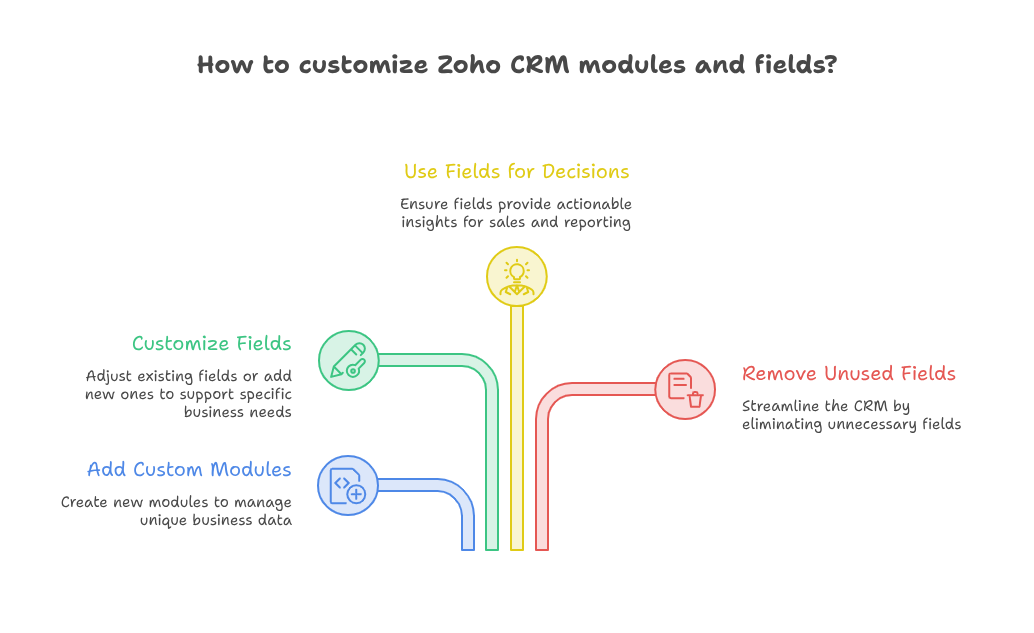
Modules organize business information inside the CRM. Standard modules include leads, contacts, accounts, and deals. However, many businesses need additional modules for unique records.
Zoho CRM modules and fields can be adjusted to match your services, products, customer categories, or internal processes.
Use Fields That Support Decisions
Each field should have a clear purpose. Useful fields may include lead source, budget range, service type, renewal date, or decision timeline.
Zoho CRM modules and fields should support sales actions and management reporting. Remove unused fields whenever possible. Also use required fields only when the information is truly necessary.
Improve Layouts, Views, and Pipelines
Layouts control how records appear to users. A well-designed layout shows important information first and hides unnecessary details.
You can customize Zoho CRM features by creating layouts for different teams or customer segments. For instance, an enterprise sales team may need contract and approval fields. A small-business team may need a shorter layout.
Build Clear Sales Pipelines
Sales pipelines should reflect real deal stages. Avoid vague stages that users interpret differently.
Define each stage with a clear entry condition and expected action. This improves forecasting and makes pipeline reports more reliable. It also strengthens the overall Zoho CRM setup customization.
Use Zoho CRM Automation Customization
Automation reduces repetitive work and keeps processes consistent. It can create tasks, send alerts, update fields, or assign records automatically.
Zoho CRM automation customization should focus on valuable actions, not unnecessary complexity. Every automation should save time, reduce risk, or improve customer response.
Automate Lead Assignment
New leads should reach the correct salesperson quickly. Assignment rules can distribute leads by region, product, source, or business size.
This is one practical way to customize Zoho CRM features for faster response. It also reduces manual coordination between managers and sales teams.
Automate Follow-Ups and Approvals
Workflows can create reminders when leads remain inactive. They can also notify managers when discounts require approval.
Zoho CRM automation customization can standardize these steps across the company. As a result, fewer opportunities are forgotten or delayed.
Manage Roles, Permissions, and Data Access
This area is an important part of a secure CRM strategy. Clear permissions improve security without blocking productive work.
Match Access with Job Responsibilities
Define what each team should view, create, edit, or delete. Then configure permissions around those responsibilities.
Avoid giving full access to every user. Broad permissions can increase errors and create data security risks.
Practical Use Case: Customizing CRM for a Service Company
Consider a service company that receives leads through forms, calls, and referrals. The company offers consulting, implementation, and monthly support.
Its standard CRM cannot track service type, estimated hours, approval status, or onboarding progress. Therefore, the team needs structured customization.
First, the company updates Zoho CRM modules and fields for service category, budget, timeline, and account owner. Next, it creates separate layouts for new projects and support renewals.
The team then uses Zoho CRM automation customization to assign leads by service type. Follow-up tasks are created automatically after each inquiry.
Managers also receive approval alerts for large discounts. Finally, dashboards show lead sources, conversion rates, project value, and pending renewals.
This Zoho CRM setup customization gives every team a clearer process. Sales staff respond faster, managers gain better visibility, and customers receive consistent communication.
Test, Train, and Improve the System
Customization should never end after launch. Business needs change, and the CRM should change with them.
Test each feature with a small user group. Check layouts, permissions, workflows, reports, and mobile access. Then fix issues before wider deployment.
Training is equally important. Users should understand why each field and process exists.
Regular reviews also help you customize Zoho CRM features as the company grows. Remove outdated fields and update pipelines when processes change.
Conclusion
A well-planned Zoho CRM customization guide gives businesses better control over sales, data, and customer activity. It helps teams work faster and follow consistent processes.
The right approach starts with clear requirements. It then improves Zoho CRM modules and fields, layouts, permissions, reporting, and workflows.
Zoho CRM automation customization can also reduce manual tasks and improve response times. However, every change should remain simple, useful, and easy to maintain.
Zoho provides flexible tools for managing customers and growing business operations. However, expert implementation is important for long-term results. With iTecZone as a certified Zoho partner, you gain experienced support across Zoho applications. Our team can plan, implement, customize, and improve your CRM. Therefore, iTecZone is the right Zoho Consultant Partner for reliable business transformation.
FAQ’s
What is Zoho CRM customization?
Zoho CRM customization means changing modules, fields, layouts, workflows, and permissions to fit your business processes.
Can I customize Zoho CRM without technical knowledge?
Basic changes are possible without coding. However, advanced workflows, functions, integrations, and automation may require a certified Zoho expert.
Which Zoho CRM features should be customized first?
Start with pipelines, fields, layouts, roles, and lead assignment. These areas usually have the greatest daily impact.
How does automation improve Zoho CRM?
Automation handles repetitive actions, creates reminders, assigns records, and supports approvals. It helps teams work faster and more consistently.
How often should Zoho CRM customization be reviewed?
Review the setup every three to six months. You should also review it after major process or team changes.
Why should I hire a Zoho consultant?
A Zoho consultant can prevent setup mistakes and create scalable solutions. Expert support also improves adoption, reporting, and system performance.