Running an online store involves more than processing payments. A WooCommerce Zoho CRM plugin connects store activity with customer management. The right WooCommerce Zoho CRM plugin reduces manual work and keeps records accurate. As a result, sales and support teams can respond faster.
What Is a WooCommerce Zoho CRM Integration?
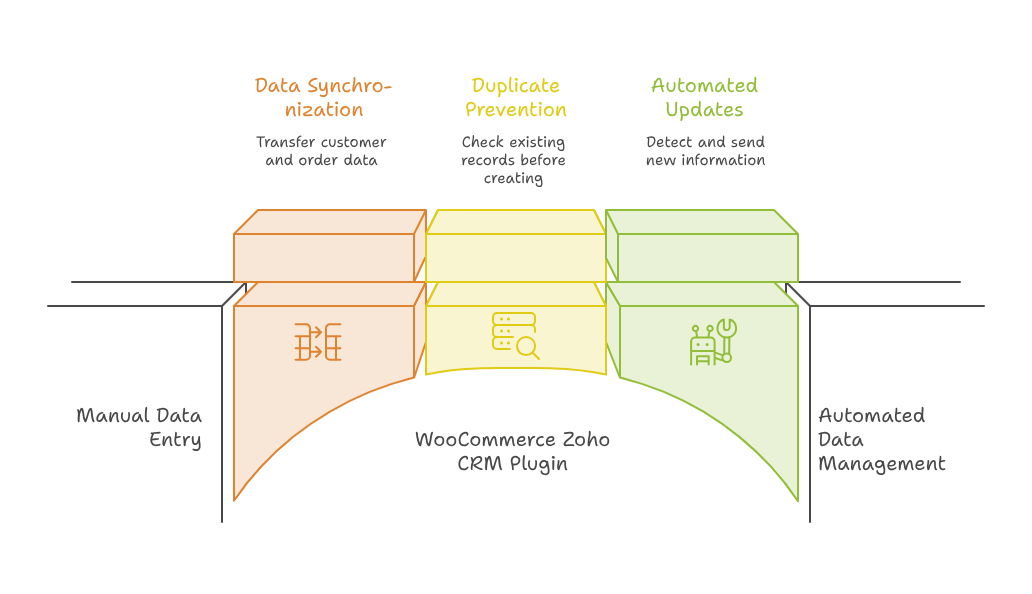
A WooCommerce Zoho CRM integration plugin connects your store with Zoho CRM. It transfers customer, order, product, and payment information between both platforms.
Without integration, employees often copy store data into the CRM manually. This process takes time and creates avoidable mistakes. A WooCommerce CRM automation plugin removes repetitive work and improves data consistency.
How the Sync Works
The plugin detects a new order or customer update in WooCommerce. It then sends that information to Zoho CRM. The system can create or update contacts, accounts, deals, or custom modules.
A reliable Zoho CRM WooCommerce sync also checks existing records before creating new ones. This step helps prevent duplicate contacts. Therefore, your team receives cleaner data and more useful customer histories.
Information You Can Transfer
A WooCommerce order sync Zoho CRM setup can move many useful details. These include names, emails, phone numbers, billing details, products, quantities, and order values.
Advanced setups may also transfer refunds, taxes, coupons, and shipping details. Each business should only sync data supporting daily operations.
Why Your Store Needs CRM Automation
WooCommerce manages ecommerce transactions. Zoho CRM manages customer relationships, sales pipelines, tasks, and follow-ups. Connecting both systems creates a stronger process.
A WooCommerce CRM automation plugin gives employees quick access to new sales information. Sales teams can identify repeat customers and high-value buyers. Support teams can review past orders before answering questions.
Reduce Manual Data Entry
Manual data entry wastes time and increases typing errors. A WooCommerce Zoho CRM integration plugin automatically transfers important records. Consequently, employees can focus on customers instead of administrative work.
The WooCommerce CRM automation plugin also improves consistency. Every order follows the same transfer process. Important fields are less likely to be missed.
Improve Customer Follow-Ups
Customer follow-up becomes easier when store activity appears inside Zoho CRM. Teams can create tasks, reminders, and relevant product recommendations.
A well-configured Zoho CRM WooCommerce sync supports more targeted communication. Buyers can receive messages based on their purchases. This approach feels more personal than sending identical messages to everyone.
Build Better Reports
Accurate reporting depends on complete data. Ecommerce information often stays separate from sales information. This separation makes performance analysis difficult.
Ecommerce CRM integration software brings both data sources together. Managers can compare orders, customer value, sales activity, and conversion performance. They can also identify products linked with repeat purchases.
Main Benefits of Automated Order Sync
A proper WooCommerce order sync Zoho CRM process improves visibility, automation, and customer service. It also makes daily reporting more dependable.
Centralized Customer Records
Your CRM becomes a central place for customer information. Employees can see contact details, previous orders, and sales conversations. This shared view reduces confusion across departments.
Ecommerce CRM integration software also creates better customer profiles. Teams can understand buying patterns and preferred products. They can then plan more focused campaigns.
Useful Workflow Automation
Zoho CRM can trigger actions after receiving WooCommerce data. It can assign customers, create tasks, send alerts, and update deal stages.
A WooCommerce CRM automation plugin makes these workflows more practical. The automation begins with real store activity. Therefore, your CRM becomes an active business tool.
Practical Use Case
Consider an electronics store selling laptops, accessories, and maintenance plans. The store receives many orders each day. Its sales team also offers business packages to repeat customers.
The company installs a WooCommerce Zoho CRM integration plugin. Each new order creates or updates the correct customer record. Order details also appear inside a custom sales module.
The Zoho CRM WooCommerce sync checks each customer’s total spending. Customers crossing a selected value receive a priority tag. A follow-up task is then assigned automatically.
The representative contacts the buyer about business pricing and extended support. Support staff can also view the complete order history.
The WooCommerce order sync Zoho CRM workflow sends failed-payment alerts. Staff can contact customers before losing sales. This setup improves service without manual work.
Features to Look for in a Plugin
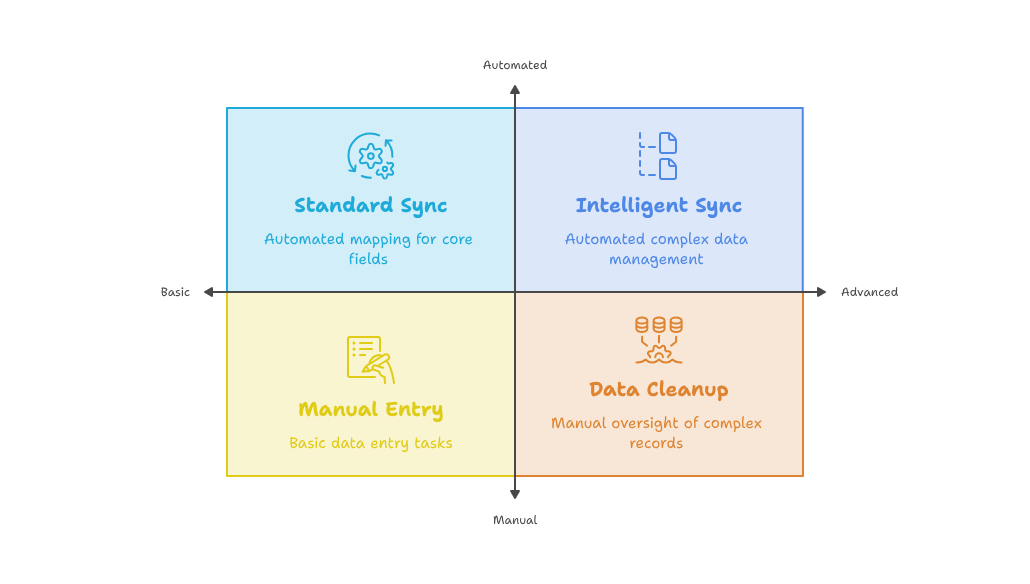
Not every plugin offers the same flexibility. Your chosen WooCommerce Zoho CRM plugin should match your current process. It should also support future growth.
Flexible Field Mapping
Field mapping controls where WooCommerce information appears in Zoho CRM. A useful plugin should support standard and custom fields. It should also map order data into suitable modules.
Poor mapping can create incomplete or confusing records. Therefore, planning field connections is essential before activation.
Duplicate Record Control
Duplicate records reduce CRM quality. They can also cause repeated emails and inaccurate reports. The plugin should identify existing contacts using selected fields.
A strong ecommerce CRM integration software setup uses clear duplicate rules. Companies may use email addresses, phone numbers, or customer IDs.
Common Integration Challenges
Integration projects can fail without proper planning. A plugin may work technically but still create poor business results.
Incorrect Module Selection
Sending every order into the Deals module may not suit every company. Some businesses need a custom Orders module. Others create deals only for high-value customers.
Your Zoho CRM WooCommerce sync should reflect your real sales process. Otherwise, the CRM can become crowded and difficult to use.
Poor Field Mapping
Incorrect field mapping can place data in the wrong locations. It can also leave required fields empty. Testing should cover guest orders, refunds, discounts, and different payment methods.
A professional setup checks every important scenario. This step reduces integration problems after launch.
How to Plan a Successful Integration
List the information your teams need inside Zoho CRM. Then define modules, fields, duplicate rules, owners, and automated actions.
Test the WooCommerce order sync Zoho CRM process with guest orders, refunds, discounts, and different payment methods. Finally, review the system regularly as your business changes.
Your WooCommerce Zoho CRM plugin may also need future adjustments. New products, sales processes, and customer groups can create additional requirements.
Conclusion
A WooCommerce Zoho CRM plugin connects ecommerce activity with customer relationship management. It reduces manual work, improves accuracy, and supports faster follow-ups.
The right WooCommerce Zoho CRM integration plugin can also improve reporting and customer service. Meanwhile, ecommerce CRM integration software creates a clearer view of customer value. Strong results depend on careful planning, testing, and customization.
Zoho can become a powerful platform for sales, service, marketing, and automation. However, successful implementation requires the right technical setup. With iTecZone as a certified Zoho partner, you gain access to experienced Zoho developers. Our team can implement and customize Zoho applications around your business needs. This makes iTecZone a reliable choice for your Zoho Consultant Partner.
FAQ’s
Can WooCommerce Connect With Zoho CRM?
Yes, WooCommerce can connect through a plugin or custom API solution. The best method depends on your data and workflow requirements.
What Information Can the Plugin Transfer?
It can transfer customers, orders, products, payments, shipping details, taxes, discounts, and refunds. Available options depend on the selected plugin.
Can the Integration Prevent Duplicate Contacts?
Many integrations include duplicate checking. However, the rules must be configured carefully. Email, phone, or customer ID can identify records.
Can Zoho CRM Automate Follow-Ups After an Order?
Yes, workflows can create tasks, send emails, assign owners, or update fields. These actions begin after order data enters Zoho CRM.
Does the Integration Support Custom Zoho CRM Modules?
Many plugins support custom fields and modules. However, advanced requirements may need custom development or API configuration.
Why Should I Hire a Zoho Partner?
A Zoho partner can plan field mapping, automation, testing, and error handling. Expert support reduces risks and improves long-term performance.