Zoho CRM Layouts help businesses organize fields, sections, and records according to their daily processes. When Zoho CRM Layouts disappear, teams may suddenly see default fields instead of their carefully designed screens.
This problem can appear after enabling the latest Zoho CRM UI Update. However, the layouts are often still available inside the system. The issue usually relates to profile assignments, Canvas settings, module views, or access permissions.
The new interface changes how users navigate modules and open records. Therefore, familiar settings may appear in different places. This change can make an existing Zoho CRM Custom Layout look missing, disabled, or replaced.
Fortunately, you can usually restore the correct layout without rebuilding everything. This guide explains the main causes and practical fixes.
Why Zoho CRM Layouts May Appear Missing
A CRM layout controls how fields and sections appear inside a module. For example, your Leads module may contain separate layouts for different lead types.
Zoho CRM also supports multiple layouts within supported modules. Each profile can access several layouts, but only one can be the default.
After a Zoho CRM UI Update, your records may open through another assigned view. As a result, the layout still exists, but the user cannot see it.
Several settings can create this situation.
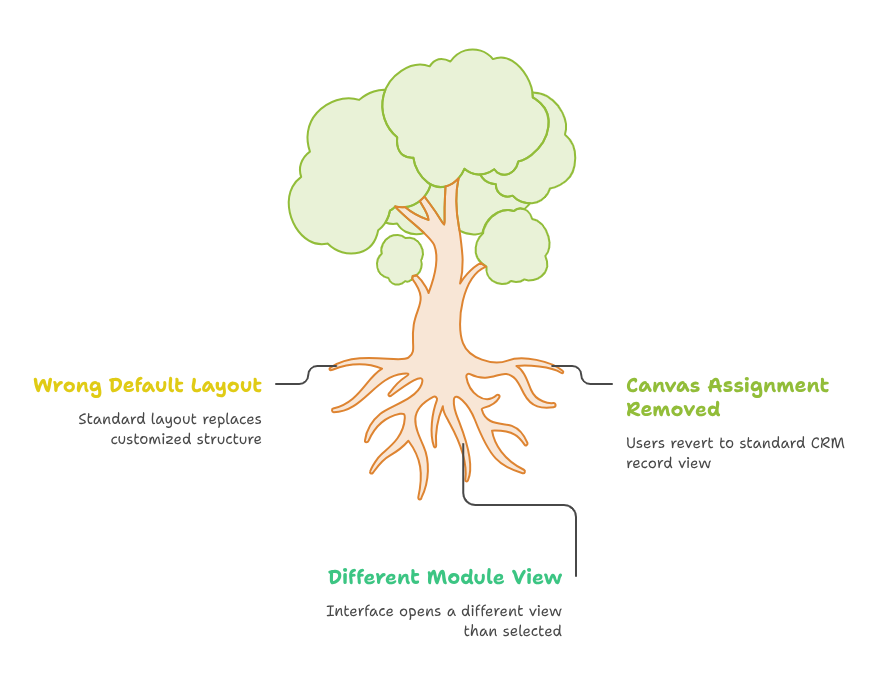
The User Profile Has the Wrong Default Layout
Every profile can have access to multiple layouts. However, one layout normally acts as the default option for that profile.
A recent configuration change may assign the Standard Layout as the default. Therefore, users may see basic fields instead of their customized structure.
Check the affected profile before changing fields or rebuilding the module.
Open the module settings and review the layout assignments. Confirm that the correct profile can access the required layout.
The Canvas Assignment Was Removed
A Zoho CRM Canvas View changes how records appear without changing the underlying CRM data. It can control detail pages, forms, and list views.
Canvas layouts are assigned according to user profiles. When that assignment is removed, users automatically return to the standard CRM record view.
This can make a customized screen appear deleted. In reality, only the Canvas assignment may have changed.
Review the Canvas settings for the affected module. Then confirm that the correct design is assigned to each required profile.
Users Are Opening a Different Module View
Zoho CRM supports different module views, including list, tile, table, Grid, and Canvas-based views.
The latest interface may open a different view than users previously selected. Therefore, the expected Zoho CRM Canvas View may not appear automatically.
Canvas module views can include custom list, tile, and table formats.
Ask the affected user to check the current view selector. Then select the required view from the available options.
How to Fix the Zoho CRM Layout Issue
Before making major changes, test the problem with one user and one module. This approach prevents unnecessary configuration changes across the complete CRM.
Follow these checks in order.
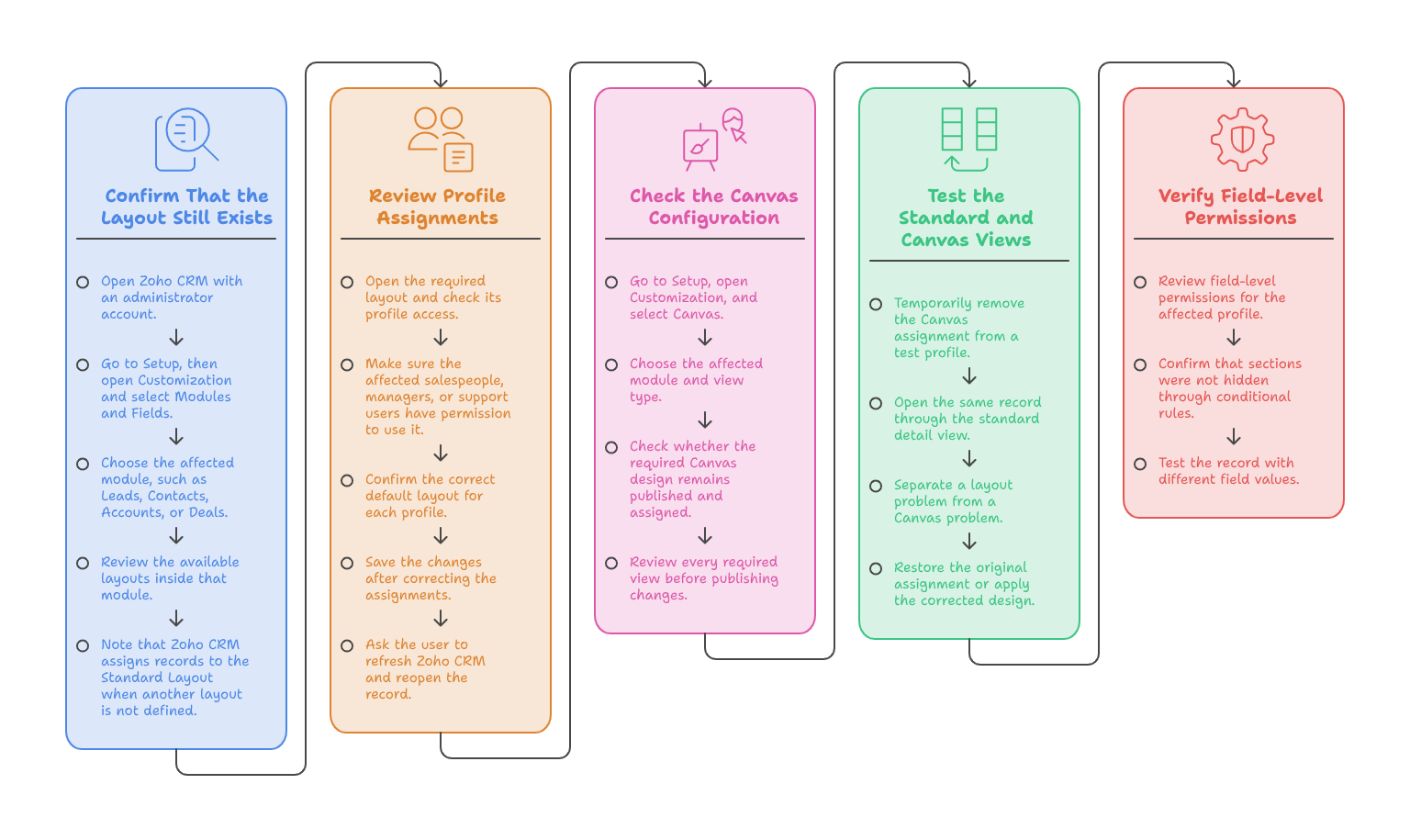
Step 1: Confirm That the Layout Still Exists
Open Zoho CRM with an administrator account.
Go to Setup, then open Customization and select Modules and Fields. Choose the affected module, such as Leads, Contacts, Accounts, or Deals.
Review the available layouts inside that module. Your Zoho CRM Custom Layout may still appear in the configuration area.
Zoho CRM assigns records to the Standard Layout when another layout is not defined.
Therefore, seeing the Standard Layout does not always mean your customization was deleted.
Step 2: Review Profile Assignments
Open the required layout and check its profile access.
Make sure the affected salespeople, managers, or support users have permission to use it. Also, confirm the correct default layout for each profile.
This step is important when only some users face the Zoho CRM Layout Issue.
When administrators can see the design, but employees cannot, profile access is usually the first setting to inspect.
Save the changes after correcting the assignments. Then ask the user to refresh Zoho CRM and reopen the record.
Step 3: Check the Canvas Configuration
Go to Setup, open Customization, and select Canvas.
Choose the affected module and view type. Then check whether the required Canvas design remains published and assigned.
Zoho CRM Canvas supports record detail pages, data entry forms, and module views. Each design can be assigned separately.
For example, a profile may have the correct detail Canvas but the wrong form Canvas. This creates an inconsistent user experience.
Review every required view before publishing changes.
Step 4: Test the Standard and Canvas Views
Temporarily remove the Canvas assignment from a test profile.
Next, open the same record through the standard detail view. This test helps separate a layout problem from a Canvas problem.
If the fields appear correctly, the main Zoho CRM Layout Issue likely involves the Canvas configuration.
If fields remain missing, check the module layout, field permissions, and profile permissions.
After testing, restore the original assignment or apply the corrected design.
Step 5: Verify Field-Level Permissions
Sometimes the layout opens correctly, but several fields remain hidden.
In that case, review field-level permissions for the affected profile. A field may exist within the layout but remain invisible to certain users.
Also, confirm that sections were not hidden through conditional rules. Layout rules can control field visibility and required fields based on selected values.
Test the record with different field values. This may reveal a rule that hides important information.
Practical Use Case
Consider a property management company using separate layouts inside the Deals module.
The company has one layout for residential properties. It also has another layout for commercial properties.
The commercial Zoho CRM Custom Layout includes lease terms, building size, compliance details, and expected rental income.
After the Zoho CRM UI Update, commercial agents begin seeing the Standard Layout. Their important property fields appear missing.
However, administrators can still see every field inside the module settings.
The CRM administrator checks the layout assignments first. The commercial sales profile still has access to both layouts.
Next, the administrator reviews the Zoho CRM Canvas View assignment. The commercial Canvas design is no longer assigned to that profile.
After restoring the assignment, the customized record screen appears again. No fields or records require rebuilding.
This example shows why administrators should investigate assignments before creating a new design.
Common Mistakes to Avoid
Do not immediately delete or recreate the existing layout. The original design may still exist inside the module settings.
Also, avoid changing permissions for every profile at once. Test one profile before applying changes across the organization.
Do not confuse page layouts with Canvas designs. They work together, but they control different parts of the user experience.
A Zoho CRM Custom Layout controls fields, sections, and module-level structure. A Zoho CRM Canvas View controls visual presentation and screen design.
Finally, document every configuration change. Clear documentation makes future troubleshooting faster and safer.
How to Prevent Future Layout Problems
Review layout and Canvas assignments before enabling major interface changes.
Create a small testing group for every important Zoho CRM UI Update. This group can identify navigation, permission, and design issues before company-wide adoption.
Keep a record of profile assignments, default layouts, and Canvas configurations. Screenshots can also help your administrator compare settings.
Additionally, test important modules after permission changes. Focus on Leads, Contacts, Accounts, Deals, and custom modules.
Regular testing reduces unexpected workflow interruptions. It also protects the time invested in your Zoho CRM Layouts.
Conclusion
Missing Zoho CRM Layouts do not always mean your designs were deleted. The problem often involves profile assignments, default layouts, permissions, or Canvas settings.
Start by confirming that the layout still exists. Then review profile access, Canvas assignments, module views, and field permissions.
A structured review can resolve the Zoho CRM Layout Issue without rebuilding your complete CRM. It also reduces downtime for sales and support teams.
Zoho can become a powerful platform for managing sales, customer service, marketing, and daily operations. However, successful results require careful implementation and ongoing customization.
As a certified Zoho partner, iTecZone provides professional services for Zoho CRM and other Zoho applications. Our experienced developers can configure layouts, Canvas designs, workflows, integrations, and automation.
Therefore, iTecZone is the perfect choice as your Zoho Consultant Partner. Contact our team to fix your CRM configuration and improve your business processes.
FAQs
Why did my Zoho CRM layouts disappear?
Your layouts may appear missing because of changed profile assignments, default layouts, Canvas settings, or user permissions.
Does a Zoho CRM UI update delete custom layouts?
An interface update does not always delete layouts. However, it may change how users access assigned views and modules.
How can I check my Zoho CRM Custom Layout?
Open Setup, select Modules and Fields, and choose the affected module. Then review the available layouts and profile assignments.
What is the difference between a page layout and Canvas?
A page layout controls fields and sections. Canvas controls the visual presentation of forms, lists, and record pages.
Can different profiles use different layouts?
Yes. Profiles can access multiple layouts, but each profile normally has one default layout.
Why can administrators see the layout, but users cannot?
The affected users may lack layout access, field permissions, customization permissions, or the correct Canvas assignment.
Can I switch from Canvas to the standard CRM view?
Yes. Removing or disabling the Canvas assignment returns users to the standard record view.
Should I rebuild a missing layout immediately?
No. First check module settings, profile assignments, Canvas settings, and field permissions. The original design may still exist.
Can iTecZone fix a Zoho CRM Layout Issue?
Yes. iTecZone can review layouts, permissions, Canvas configurations, workflows, integrations, and other Zoho CRM settings.