The CRM for Everyone update has changed how teams use Zoho CRM. Many users welcomed CRM for Everyone, while others preferred the familiar layout. The redesigned system offers modern navigation, team collaboration, and quicker access to important tools. However, the change has also raised one common question. Can users disable the new interface and return to the Zoho CRM Old UI?
Previously, Zoho allowed users to switch between both interface versions. However, the situation changed during July 2026. Zoho retired the older interface and moved users toward the updated experience. Therefore, the Zoho UI Switch may no longer offer the old version.
This guide explains the latest change and its effect on your business. It also covers practical ways to adjust the Zoho CRM Interface.
What Is CRM for Everyone?
CRM for Everyone is Zoho’s updated approach to customer relationship management. It extends CRM access beyond traditional sales teams.
Marketing, onboarding, finance, support, and operations teams can now participate more easily. Each department can manage relevant customer activities without disrupting the main sales process.
The CRM for Everyone Update also introduces a redesigned interface. It includes Teamspaces, Team Modules, improved views, and updated navigation.
The goal is to make collaboration easier across the organization. Teams can work together while keeping their responsibilities clearly separated.
Key Features of CRM for Everyone
The updated system includes several important features:
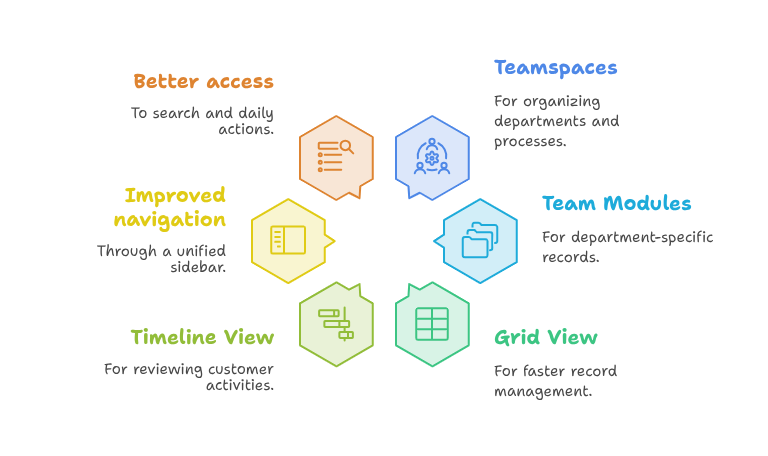
- Teamspaces for organizing departments and processes
- Team Modules for department-specific records
- Grid View for faster record management
- Timeline View for reviewing customer activities
- Improved navigation through a unified sidebar
- Better access to search and daily actions
These features make the Zoho CRM New UI more suitable for cross-functional teams. However, they may require adjustments for experienced users.
The updated Zoho CRM Interface places many tools in different locations. Therefore, users may need time and training before reaching their previous speed.
Can You Disable the New Zoho UI?
The answer depends on when your organization received the update.
During the earlier rollout, users could select the Zoho UI Switch from their profile menu. They could choose “Switch to Old Version” and return temporarily.
Zoho’s earlier documentation confirmed this switching option. It also explained how Teamspaces and Team Modules behaved after returning.
However, Zoho later announced the retirement of the Zoho CRM Old UI. The retirement process started after July 15, 2026.
Free, Standard, and Professional editions moved between July 15 and July 17. Enterprise, Ultimate, and bundled accounts moved between July 21 and July 24.
Therefore, organizations using Zoho CRM after these dates may not see the switching option. The Zoho UI Switch is no longer a permanent solution.
In most accounts, you cannot disable the Zoho CRM New UI completely. The new interface has become the standard experience.
Why Did Zoho Retire the Old Interface?
Maintaining two separate interfaces creates technical and operational challenges. Every feature must work correctly across both versions.
It also makes user training and product support more complicated. Therefore, Zoho decided to focus development on one modern experience.
The new Zoho CRM Interface provides more screen space and improved navigation. It also reduces clicks for several common actions.
Zoho designed the improved interface around faster access and clearer navigation. The company also wanted frequently used tools to remain easy to reach.
The CRM for Everyone Update supports Zoho’s wider collaboration model. This model allows more departments to contribute to customer management.
Benefits of the Zoho CRM New UI
The Zoho CRM New UI offers several long-term benefits.
First, the unified sidebar keeps navigation in one consistent area. Users can locate modules without moving between multiple menus.
Second, Teamspaces separate different business functions. Sales teams can focus on deals, while support teams manage service information.
Third, Team Modules reduce unnecessary access to sales records. Departments can work with purpose-built records and permissions.
Finally, the updated Zoho CRM Interface supports newer features more effectively. Future improvements will focus on this interface.
Why Are Some Users Uncomfortable With the Change?
Interface changes can affect daily productivity. Experienced users often rely on habits built over several years.
A button placed in a different location can slow down simple tasks. New menus can also create confusion during busy working hours.
The Zoho CRM Old UI felt familiar to long-term users. Its navigation matched their existing processes and internal training materials.
Meanwhile, the Zoho CRM New UI introduces a different visual structure. Users must relearn module access, views, filters, and administrative settings.
This challenge does not mean the new version is ineffective. It usually means the organization needs a proper transition plan.
Practical Use Case: A Sales Team Adjusting to the New UI
Consider a property services company with 25 CRM users. Its sales representatives manage leads, site visits, quotations, and follow-ups.
The company previously used the Zoho CRM Old UI for several years. Every representative knew where to find leads and update deals.
After the CRM for Everyone Update, the team noticed several differences. Module navigation moved, record views changed, and filters appeared differently.
At first, representatives completed updates more slowly. Managers also received questions about missing buttons and changed menus.
The company handled the transition through three practical steps.
Step One: Review Existing Workflows
The administrator reviewed how each department used Zoho CRM. This review identified the most important daily actions.
The company then mapped those actions inside the Zoho CRM New UI. This created a simple reference for users.
Step Two: Configure Teamspaces
The administrator created Teamspaces for sales and customer support. Each team received access to relevant modules and records.
This change reduced menu clutter inside the Zoho CRM Interface. Users could focus on tools related to their roles.
Step Three: Provide Short Training Sessions
The company arranged short training sessions for each department. Every session focused on real daily tasks.
Within two weeks, the team became comfortable with CRM for Everyone. Productivity also returned to normal levels.
This example shows why configuration matters. A thoughtful setup can make the transition easier for every user.
How to Make the New Interface Easier to Use
You may not be able to restore the Zoho CRM Old UI. However, you can improve the new experience considerably.
Start by removing unused modules from the main navigation. Too many modules make the interface harder to understand.
Next, arrange Teamspaces around departments or customer processes. Clear Teamspaces help users locate relevant information faster.
You should also review profiles, roles, and permissions. Users should only see records and tools required for their work.
Custom views can further simplify the Zoho CRM Interface. For example, sales representatives can see only active opportunities.
Additionally, update internal training documents and screenshots. Older materials may still display the retired interface.
Finally, gather feedback from users. Their daily experience can reveal navigation problems and unnecessary steps.
Does the Zoho UI Switch Still Appear?
Some users may still notice a Zoho UI Switch or related interface option. Availability can depend on rollout timing and account status.
However, businesses should not build long-term plans around that option. Zoho has already completed the announced retirement phases.
Even when switching was available, it was designed as a temporary transition feature. It was not intended as a permanent interface setting.
Therefore, your organization should prepare for the Zoho CRM New UI. Training and customization offer more value than delaying the change.
What Should Zoho CRM Administrators Do?
Administrators should first confirm which features their teams use every day. They should then recreate efficient access within the new layout.
They should also review custom buttons, Canvas designs, layouts, scripts, and integrations. Interface changes can expose existing usability problems.
However, most CRM data and automation should remain available. The main difference involves navigation and user experience.
Administrators should test all important processes after the CRM for Everyone Update. Testing should cover leads, deals, tasks, reports, and approvals.
A qualified Zoho expert can also review the complete setup. This approach reduces disruption and improves user adoption.
Conclusion
CRM for Everyone represents an important change in Zoho CRM’s product direction. It brings more departments into customer management and improves collaboration.
Although many users preferred the Zoho CRM Old UI, the older interface has now reached retirement. Therefore, disabling the new version is generally unavailable.
The best approach is to optimize the Zoho CRM New UI for your business. Well-planned Teamspaces, permissions, views, and training can simplify the transition.
Zoho remains a powerful platform for managing sales, marketing, support, finance, and operations. However, successful results depend on correct implementation and customization.
With iTecZone as a certified Zoho partner, your business receives dependable technical support. Our experienced developers work across the complete Zoho ecosystem. We configure the Zoho CRM Interface, automate workflows, and improve user adoption. This expertise makes iTecZone the perfect choice as your trusted Zoho Consultant Partner.
FAQs
1. Can I switch back to the Zoho CRM Old UI?
Zoho previously offered a “Switch to Old Version” option. However, the older interface was retired during July 2026.
2. Where was the Zoho UI Switch located?
The Zoho UI Switch was available through the user profile menu. Users could select the old version during the transition period.
3. What is included in the CRM for Everyone Update?
The CRM for Everyone Update includes Teamspaces, Team Modules, improved views, and redesigned navigation. It also supports wider departmental collaboration.
4. Will my CRM data disappear after the interface change?
No, an interface change should not remove your CRM records. However, some features may appear in different locations.
5. Why can I not find certain modules?
Modules may appear inside another Teamspace or sidebar section. Your profile permissions may also limit access.
6. Is the Zoho CRM New UI better for larger teams?
The Zoho CRM New UI can help larger teams organize departmental access. Teamspaces and Team Modules support clearer responsibilities.
7. Can a Zoho partner customize the new interface?
Yes, a Zoho partner can configure layouts, views, permissions, workflows, and Teamspaces. They can also provide user training.
8. How long does the transition usually take?
The timeline depends on your users and CRM complexity. A focused plan can help teams adjust within several working days.
9. Should businesses delay the CRM for Everyone transition?
Delaying the transition is no longer practical after the old interface retirement. Businesses should focus on configuration and user adoption.
10. How can iTecZone help with CRM for Everyone?
iTecZone can review your Zoho setup and improve the new interface. Our team can also customize workflows, modules, integrations, and permissions.