A Zoho Canvas Clone issue can interrupt a smooth sales process and confuse users. A Zoho Canvas Clone problem often appears when a custom button stops working. The record may open incorrectly, fail to copy data, or trigger an unexpected error.
This issue usually involves the Canvas layout, custom buttons, scripts, or record actions. In many cases, the standard CRM clone action works normally. However, the same action may fail inside a custom Canvas view.
The good news is that most clone issues can be fixed. You need to review the Canvas setup, button configuration, and script logic carefully. This guide explains the common causes and practical solutions.
What Is the Zoho Canvas Clone Issue?
Zoho Canvas allows businesses to create custom record layouts inside Zoho CRM. These layouts improve usability and make important data easier to access.
However, a custom Zoho Canvas Button may not always behave like a standard CRM button. Users may click the button and see no response. Sometimes, the page refreshes without creating a cloned record.
In other cases, the cloned record opens with incomplete field values. A lookup field may remain empty. A custom field may not copy correctly. The user may also receive a script error.
A Canvas View Clone issue becomes more noticeable when teams depend on repeated record creation. Sales teams often clone deals, quotes, accounts, and custom module records.
Without a working clone process, users must enter the same information again. This wastes time and increases the risk of data mistakes.
Common Causes of a Zoho Canvas Clone Problem
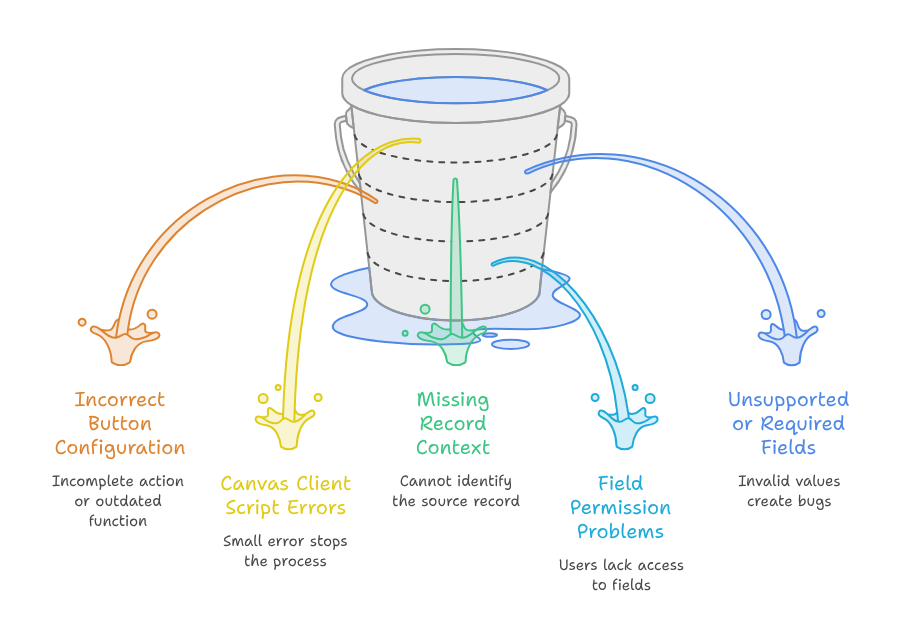
Several technical and configuration issues can affect the clone process. The exact cause depends on the Canvas layout and CRM customization.
Incorrect Canvas Button Configuration
A Zoho Canvas Button must have the correct action and target. If the action is incomplete, the clone process may not start.
The button may also point toward an outdated function. This often happens after a Canvas layout is copied or modified.
Check the button settings and confirm the correct module. Also, review the selected record action.
Canvas Client Script Errors
A Canvas Client Script can control button clicks, field values, navigation, and custom actions. One small error can stop the complete process.
For example, the script may use the wrong record ID. It may also call an unsupported method inside the Canvas environment.
A Canvas Client Script may work on a standard record page. However, it may fail inside a custom Canvas view.
Always review the browser console and Zoho script response. These details can reveal the exact failure point.
Missing Record Context
The clone process needs the current record ID and module information. Without this context, the system cannot identify the source record.
This issue often appears when a button is placed inside a custom section. It may also happen after duplicating a Canvas design.
The new Canvas layout may not pass the correct record value. Therefore, the Canvas View Clone action cannot continue.
Field Permission Problems
User permissions can also affect cloning. Some users may not have access to specific fields or modules.
The clone action may copy standard fields but skip restricted fields. In other cases, the process may stop completely.
Check the user profile, role, field permissions, and module permissions. Also, confirm that required fields are visible.
Unsupported or Required Fields
A cloned record may contain required fields with invalid values. Some fields may depend on workflows or validation rules.
For example, a required lookup may reference an inactive record. A date field may also fail a validation condition.
These problems can create a Zoho CRM Bug Fix requirement. However, the issue may come from customization rather than Zoho CRM itself.
How to Fix the Zoho Canvas Clone Issue
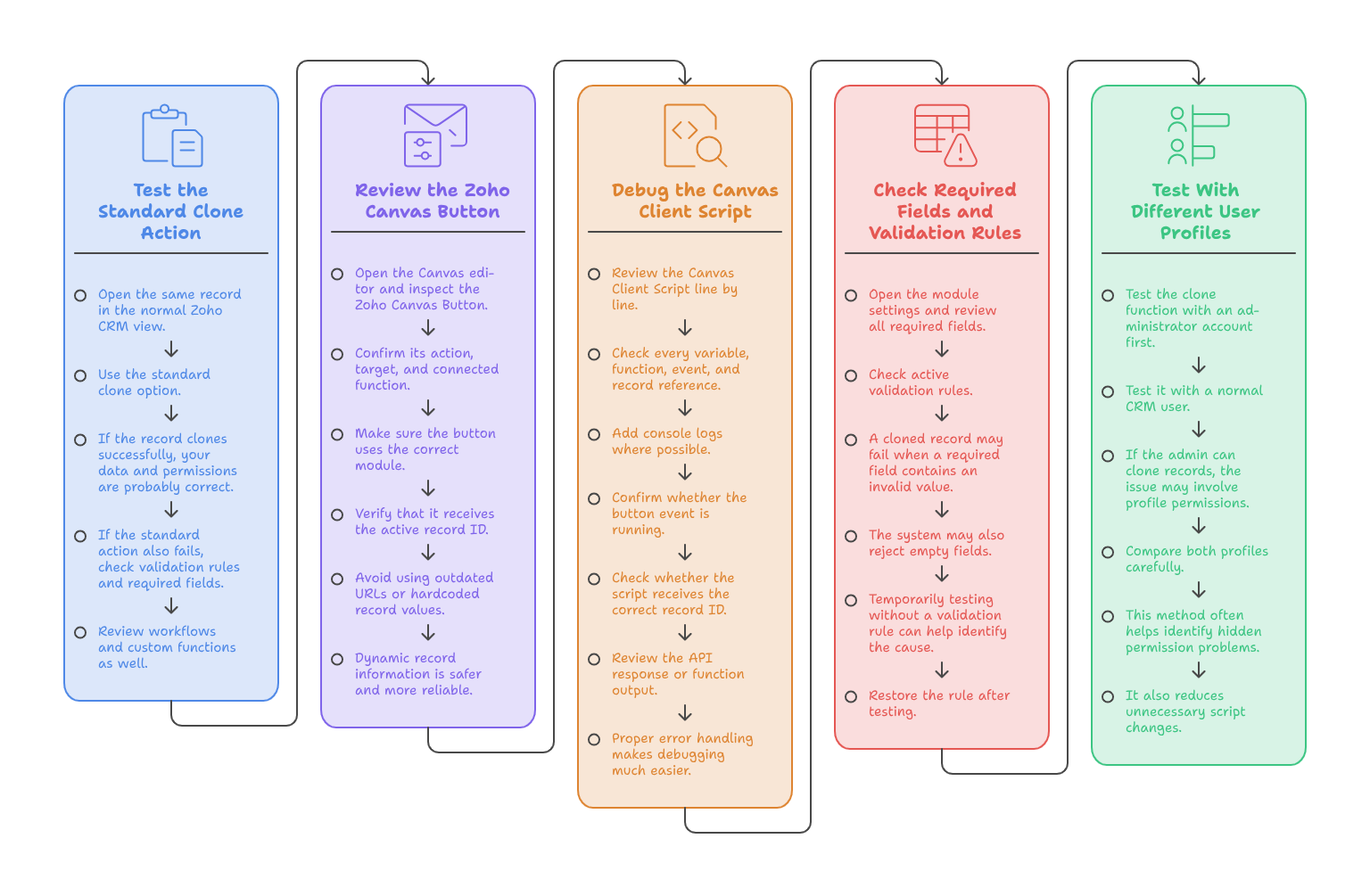
The repair process should begin with a simple test. First, check whether the standard clone option works outside Canvas.
If the normal clone action works, the issue likely exists inside the Canvas configuration. Then, review each custom element separately.
Step 1: Test the Standard Clone Action
Open the same record in the normal Zoho CRM view. Use the standard clone option.
If the record clones successfully, your data and permissions are probably correct. The Canvas setup needs further review.
If the standard action also fails, check validation rules and required fields. Review workflows and custom functions as well.
Step 2: Review the Zoho Canvas Button
Open the Canvas editor and inspect the Zoho Canvas Button. Confirm its action, target, and connected function.
Make sure the button uses the correct module. Also, verify that it receives the active record ID.
Avoid using outdated URLs or hardcoded record values. Dynamic record information is safer and more reliable.
Step 3: Debug the Canvas Client Script
Review the Canvas Client Script line by line. Check every variable, function, event, and record reference.
Add console logs where possible. This helps confirm whether the button event is running.
Next, check whether the script receives the correct record ID. Then, review the API response or function output.
A missing value can stop the script without showing a clear message. Proper error handling makes debugging much easier.
Step 4: Check Required Fields and Validation Rules
Open the module settings and review all required fields. Then, check active validation rules.
A cloned record may fail when a required field contains an invalid value. The system may also reject empty fields.
Temporarily testing without a validation rule can help identify the cause. However, restore the rule after testing.
Step 5: Test With Different User Profiles
Test the clone function with an administrator account first. Then, test it with a normal CRM user.
If the admin can clone records, the issue may involve profile permissions. Compare both profiles carefully.
This method often helps identify hidden permission problems. It also reduces unnecessary script changes.
Practical Use Case Example
Consider a property sales company using Zoho CRM. The team manages similar deals for multiple units.
Each deal contains pricing, project details, payment terms, and agent information. Sales representatives use a custom Canvas layout.
The company adds a Zoho Canvas Button for cloning deals. This saves time when creating similar opportunities.
However, the button stops working after the Canvas view is duplicated. Users click it, but no new deal appears.
The developer checks the Canvas Client Script and finds an incorrect record reference. The duplicated layout still uses an old parameter.
The developer updates the record ID logic and corrects the button action. The Canvas View Clone process starts working again.
Now, sales representatives can create similar deals within seconds. They only update the unit number and customer information.
This Zoho CRM Bug Fix reduces manual data entry. It also improves record accuracy and team productivity.
Best Practices for Avoiding Future Clone Issues
Always test a Canvas layout after copying or editing it. Small layout changes can affect scripts and button actions.
Use clear variable names inside every Canvas Client Script. Avoid hardcoded module names and record IDs.
Document each Zoho Canvas Button action. This helps developers understand the purpose of every custom element.
Also, test the design with several user profiles. Permission issues may not appear under an administrator account.
Review validation rules before changing the clone logic. The script may be correct, while a field rule causes the failure.
Keep backup copies of working scripts and Canvas layouts. A backup makes recovery faster after an unexpected change.
Finally, perform testing in a sandbox whenever possible. This protects live CRM data and daily operations.
When Do You Need a Zoho CRM Bug Fix Expert?
Some issues are simple configuration problems. Others require deeper knowledge of Zoho CRM APIs and Canvas behavior.
You may need expert support when the script returns unclear errors. Help may also be necessary when multiple modules are connected.
A developer can review the Canvas layout, functions, permissions, and workflows together. This approach identifies the real cause faster.
An experienced expert can also improve the clone process. They may add field mapping, validation, notifications, or automation.
The goal is not only to fix one button. The goal is to create a stable and user-friendly CRM process.
Conclusion
A broken Zoho Canvas Clone process can slow daily work and increase data entry. Fortunately, most issues have clear technical causes.
The problem may involve a Canvas Client Script, record context, permissions, or validation rules. It may also involve a misconfigured button.
A structured testing process makes the issue easier to solve. Start with the standard clone action and review each customization.
A reliable Canvas View Clone process helps users create records faster. It also supports better data consistency across Zoho CRM.
Zoho is a powerful platform for managing sales, operations, customer service, and business automation. However, correct implementation remains essential.
With iTecZone as a certified Zoho partner, your business can access expert support across Zoho applications. Our experienced developers can manage customization, integration, automation, and every complex Zoho CRM Bug Fix. This makes iTecZone a reliable choice as your Zoho Consultant Partner.
FAQ’s
Why is the clone button not working in Zoho Canvas?
The button may have an incorrect action, record ID, or script reference. Permissions and validation rules can also cause problems.
Can a Canvas Client Script clone a CRM record?
Yes, a script can support record cloning. However, it must use the correct module, record context, and supported methods.
Why does the cloned record have missing fields?
Some fields may have restricted permissions. Other fields may depend on workflows, lookups, or custom validation rules.
Does copying a Canvas view affect clone actions?
Yes, copied layouts may keep outdated references. Always review scripts, buttons, functions, and record parameters after duplication.
How can I test a Canvas View Clone issue?
First, test the normal CRM clone option. Then, test the Canvas action with an administrator and a regular user.
Is every clone issue a Zoho CRM bug?
No. Many problems come from scripts, permissions, required fields, or custom settings. Proper debugging identifies the actual cause.
Can iTecZone fix custom Zoho Canvas problems?
Yes. iTecZone can review Canvas layouts, scripts, custom buttons, workflows, integrations, and cloning errors across Zoho CRM.