Zoho Canvas Scrollbars can suddenly appear around icons, fields, buttons, or layout sections. These unwanted Zoho Canvas Scrollbars can make a previously clean CRM page look broken.
You may also notice compressed fields, misaligned elements, or icons inside small scrolling boxes. In some cases, the problem appears without any recent design changes.
This issue is often described as a Canvas Rendering Issue or Canvas Layout Bug. However, several factors can cause it.
The problem may come from fixed dimensions, browser scaling, responsive settings, cached files, or platform-level rendering changes.
Fortunately, most teams can diagnose the problem through a structured review. This guide explains the likely causes and practical solutions.
What Are Zoho Canvas Scrollbars?
Zoho Canvas Scrollbars are horizontal or vertical scrolling controls inside Canvas components. They may appear around icons, text boxes, fields, widgets, or complete sections.
Normal page scrolling helps users move through a long CRM record. However, internal scrollbars behave differently.
They often appear inside individual elements. Therefore, users must scroll within a small icon or field container.
This behaviour creates a confusing experience. It can also make important information difficult to read.
Zoho CRM Canvas supports fields, sections, tables, images, tabs, widgets, and Zoho CRM Icons. It also provides flex elements for responsive layout control.
Because these elements use different dimensions, small layout conflicts can affect the entire page.
Common Signs of a Canvas Rendering Issue
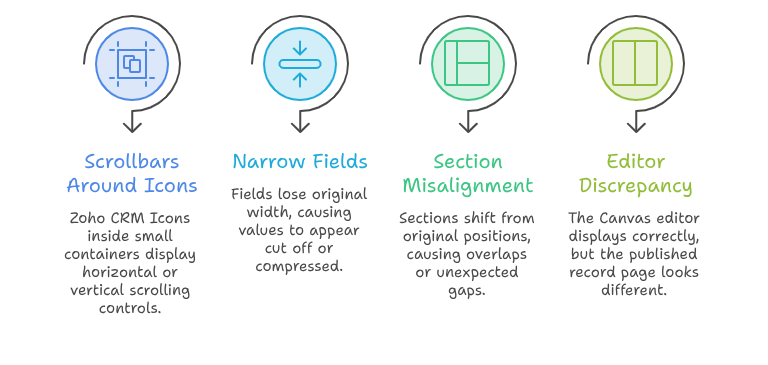
A Canvas Rendering Issue may appear differently across browsers, screens, and user profiles.
Scrollbars Around Icons
One common symptom involves Zoho CRM Icons inside small containers. The icons may suddenly display horizontal or vertical scrolling controls.
The icon itself may remain visible. However, its surrounding box can look compressed or incorrectly sized.
Fields Become Narrow or Compressed
Some fields may lose their original width. As a result, field values appear cut off or pushed into smaller spaces.
Long text fields usually show the problem first. Related lists and subforms may also become difficult to use.
Sections Move Out of Alignment
A section may shift away from its original position. Meanwhile, nearby elements may overlap or leave unexpected gaps.
This type of Canvas Layout Bug becomes more visible on smaller laptop screens.
The Editor Looks Correct
Sometimes, the Canvas editor displays the layout correctly. However, the published record page looks different.
This difference can make troubleshooting difficult. It suggests that runtime rendering may differ from editor previews.
What Causes the Zoho Canvas Scrollbars Bug?
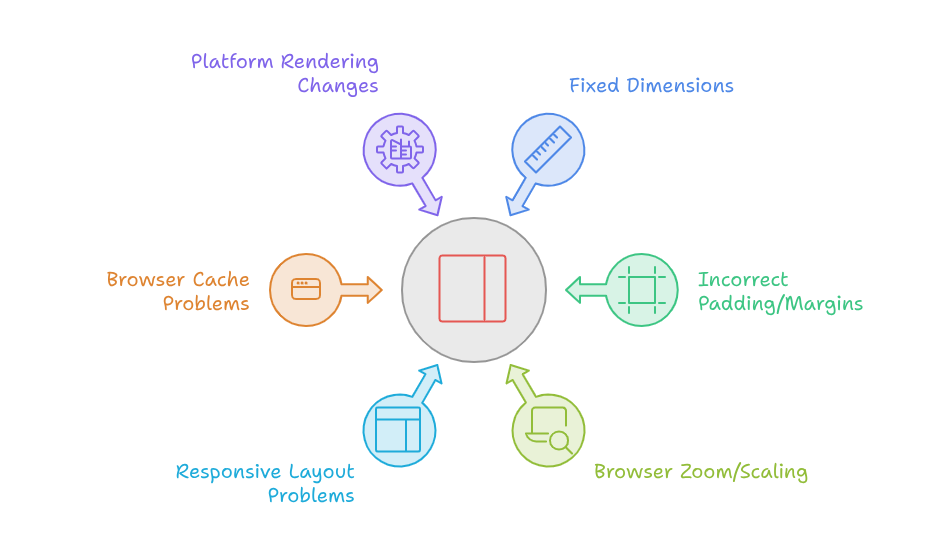
There is no single cause for every account. Therefore, you should review both the layout and the user environment.
Fixed Width and Height Settings
Fixed dimensions can create problems when the available screen space changes.
For example, an icon container may have a fixed height. Later, a browser update may calculate the icon differently.
The content then becomes slightly larger than its container. Consequently, the browser adds a scrollbar.
Fixed widths can also cause horizontal overflow. This problem often affects multi-column layouts.
Incorrect Padding or Margins
Excessive padding reduces the usable space inside an element. Even a few extra pixels can trigger overflow.
Margins can also push elements beyond their parent container. Therefore, the layout may appear normal at one resolution only.
Review padding on icons, fields, text blocks, buttons, and sections.
Browser Zoom and Display Scaling
Browser zoom can produce unexpected dimensions. Windows display scaling can create similar problems.
A layout may work at 100% zoom. However, it may show Zoho Canvas Scrollbars at 110% or 125%.
Test the page at standard browser zoom. Also, compare the layout on another device.
Responsive Layout Problems
A responsive Canvas design should adjust across different screen sizes. However, fixed columns can limit that flexibility.
Zoho provides flex elements for controlling layout responsiveness. These elements can organise information vertically or horizontally.
Without proper responsive settings, fields may become crowded. This crowding can create a wider Canvas Rendering Issue.
Browser Cache Problems
Browsers store interface files for faster loading. However, older cached files can conflict with updated platform resources.
The result may include incorrect styles, broken icons, or unusual spacing.
Clearing the cache can sometimes provide an immediate Zoho CRM UI Fix.
Changes in Platform Rendering
Sometimes, the problem appears across several users without recent layout edits.
This pattern may indicate a platform-level update or temporary rendering problem. Community users have reported Canvas views becoming skewed or displaying scrollbars around icons.
In that situation, rebuilding the entire layout may not be necessary.
How to Fix Zoho Canvas Scrollbars
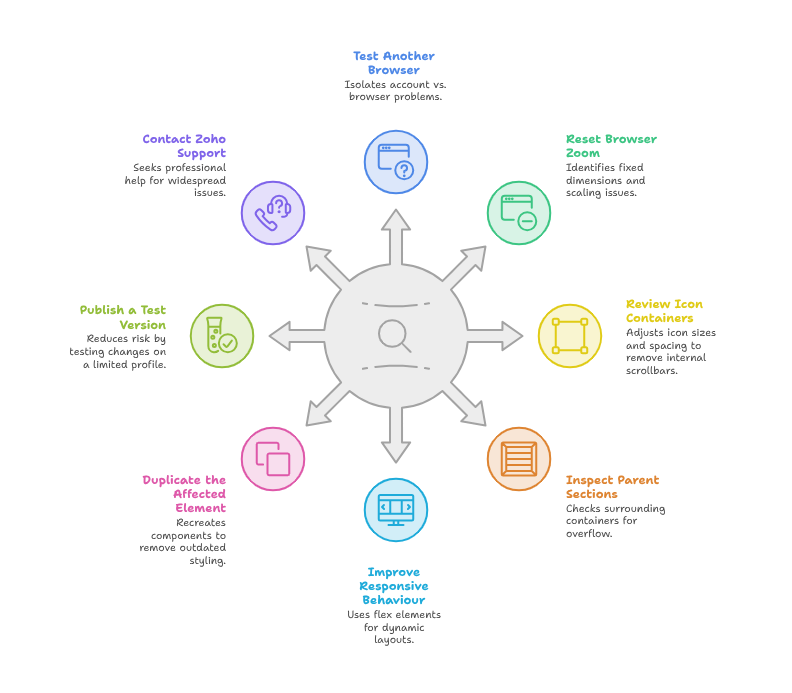
Follow these steps before making major design changes.
Step 1: Test Another Browser
Open the affected Canvas page in another supported browser.
Also, use a private browsing window. This test helps separate account problems from browser problems.
When the page works elsewhere, clear the original browser’s cache and stored website data.
Step 2: Reset Browser Zoom
Set the browser zoom to 100%. Then reload the CRM record page.
Next, test the page at different zoom levels. This process can reveal containers with fixed dimensions.
Also, check the operating system’s display scaling.
Step 3: Review Icon Containers
Open the Canvas editor and inspect all Zoho CRM Icons.
Check each icon’s width, height, padding, border, and alignment. Remove unnecessary fixed heights where possible.
Make the icon container slightly larger. Then preview and publish the layout again.
This simple adjustment often removes internal scrollbars.
Step 4: Inspect Parent Sections
The affected element may not be the real problem. Its parent section may have restricted dimensions.
Review every container surrounding the icon or field. Check sections, columns, flex elements, and tabs.
Look for overflow created by combined padding, borders, and margins.
Step 5: Improve Responsive Behaviour
Replace rigid rows with responsive flex elements when appropriate.
Use vertical flex for stacked content. Meanwhile, use horizontal flex for related fields requiring equal spacing.
Test every update on desktop and smaller laptop screens.
A responsive structure provides a more reliable Zoho CRM UI Fix than repeated pixel adjustments.
Step 6: Duplicate the Affected Element
Delete one affected element and add it again.
Sometimes, an older component keeps outdated styling. Recreating it may remove hidden design conflicts.
Test one component before rebuilding an entire section.
Step 7: Publish a Test Version
Avoid changing the main production layout immediately.
Duplicate the Canvas design first. Then assign the test version to a limited user profile.
Compare the test layout across browsers and screen sizes.
This process reduces operational risk while investigating the Canvas Layout Bug.
Step 8: Contact Zoho Support
Contact Zoho Support when the issue affects multiple users simultaneously.
Provide screenshots, browser details, screen resolution, and reproduction steps. Also, mention the affected module and Canvas name.
Include the exact time when the problem started. This detail can help identify platform changes.
Practical Use Case: Sales Dashboard Icons Show Scrollbars
Consider a sales company using Canvas for its Deals module.
The layout includes customer details, deal value, stage information, and several Zoho CRM Icons.
Each icon represents an action. Users can call customers, open emails, or view related documents.
One morning, the team notices small scrollbars around every action icon. Some fields also appear narrower than before.
The administrator first checks the Canvas editor. Surprisingly, the editor preview looks normal.
Next, the administrator opens the page in another browser. The same Canvas Rendering Issue remains.
The team then duplicates the layout. They increase the icon containers and remove unnecessary padding.
They also replace one rigid row with a horizontal flex element.
After publishing the test layout, the scrollbars disappear. The fields also return to their correct width.
The administrator tests the page on several laptops. Finally, the updated layout becomes the default version.
This example shows why structured testing matters. Rebuilding everything would have wasted valuable time.
How to Prevent Future Canvas Layout Problems
Prevention starts with responsive design.
Avoid using fixed dimensions for every component. Instead, allow sections to adjust when screen space changes.
Keep padding and margins consistent. Small spacing differences can create large alignment problems.
Test layouts at several resolutions before publishing them. Include standard desktop and laptop screen sizes.
You should also test different user profiles. Canvas permissions and assigned layouts may affect what users see.
Limit unnecessary elements inside one section. Complex sections are more likely to create a Canvas Layout Bug.
Finally, document every design change. This record makes future troubleshooting faster.
Why Professional Zoho Canvas Customisation Matters
Canvas can improve how teams interact with Zoho CRM. However, visual design should support real business processes.
A beautiful page is not useful when fields become hidden or difficult to update.
An experienced Zoho specialist can review layouts, permissions, scripts, widgets, and responsive behaviour.
They can also identify whether the problem needs a simple Zoho CRM UI Fix or a complete redesign.
Professional implementation reduces errors. Moreover, it protects users from confusing and inconsistent CRM experiences.
Conclusion
Zoho Canvas Scrollbars can damage an otherwise professional CRM layout. They often affect icons, fields, tabs, and responsive sections.
The cause may involve fixed dimensions, excessive spacing, browser scaling, cached resources, or platform rendering.
Therefore, begin with simple tests. Check browsers, zoom settings, icon containers, parent sections, and flex behaviour.
Do not rebuild the complete page without testing individual elements first.
A careful investigation can resolve the Canvas Rendering Issue without disrupting daily operations.
Zoho remains a powerful platform for managing sales, customer service, marketing, finance, and business automation. However, successful implementation requires proper planning and technical experience.
With iTecZone as a certified Zoho partner, your business can access experienced developers across the Zoho ecosystem. Our team can implement, customise, integrate, and optimise Zoho applications for your specific workflows.
Therefore, iTecZone is the right Zoho Consultant Partner for reliable implementation and long-term business growth.
FAQs
What causes Zoho Canvas Scrollbars around icons?
Small containers, fixed dimensions, excessive padding, and browser scaling can cause scrollbars. Platform rendering changes may also contribute.
Is the Canvas Layout Bug caused by my browser?
Sometimes, the issue comes from browser cache or zoom settings. However, account-wide problems may have another cause.
How can I remove scrollbars from Zoho CRM Icons?
Increase the icon container size and reduce unnecessary padding. Also, check the dimensions of its parent section.
Can responsive elements prevent a Canvas Rendering Issue?
Responsive flex elements can reduce layout overflow. They help content adjust across different screen sizes.
Why does Canvas look correct inside the editor?
The editor and published page may render elements differently. Browser settings and runtime styles may also affect the result.
Should I rebuild the complete Canvas layout?
No. Start by testing individual elements and containers. Rebuilding should remain the final option.
What is the fastest Zoho CRM UI Fix?
Reset browser zoom, clear the cache, and test another browser. Then review fixed dimensions inside the Canvas editor.
Can Zoho Support resolve the Canvas Layout Bug?
Zoho Support can investigate possible platform-level issues. Provide screenshots, affected modules, browsers, and clear reproduction steps.
Why should I work with a Zoho consultant?
A consultant can examine design, automation, scripts, widgets, permissions, and integrations together. This approach creates a more reliable solution.