A Zoho Client Script Bug can stop an important button from working inside your CRM. A Zoho Client Script Bug may also prevent users from completing daily tasks. The button may appear correctly but produce no response. In other cases, it may display an error or load incorrect data.
These problems usually involve script settings, button configuration, permissions, layouts, or incorrect API names. Therefore, checking each part carefully can help you identify the real cause.
This guide explains how to diagnose and fix common client script and related list button problems.
What Is a Zoho Client Script Bug?
Zoho Client Script allows businesses to run custom JavaScript inside supported Zoho CRM pages. It responds to user actions, page events, field changes, and supported button clicks.
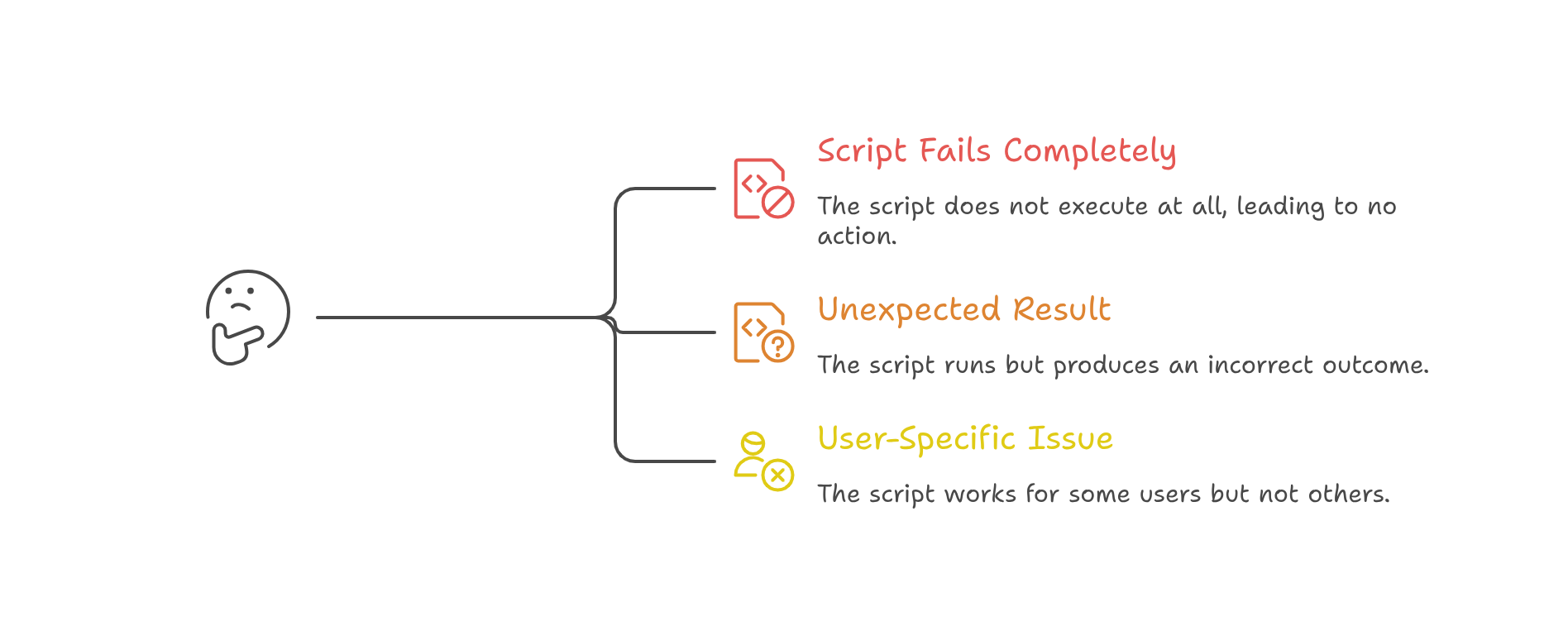
A Zoho Client Script Bug happens when the script does not behave as planned. The code may fail completely or return an unexpected result.
For example, a button should create a follow-up task. However, clicking it may produce no action.
Sometimes, the code works for one user but fails for another. This difference often points to permissions, layouts, or profile settings.
Common Signs of a CRM Client Script Issue
A CRM Client Script Issue does not always display a clear error message. Instead, users may notice small changes in CRM behaviour.
The Button Does Nothing
The custom button may appear on the record page. However, clicking it does not open a window or run an action.
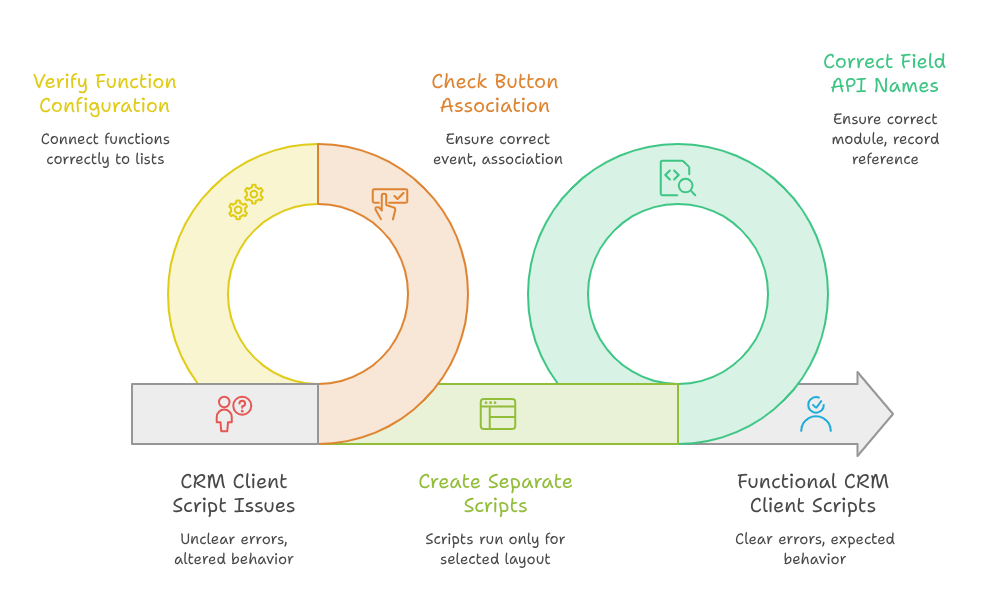
This type of Zoho Button Action Failure often relates to an unsupported event or incorrect button association.
The Related List Does Not Load
A Zoho Related List Error may prevent data from loading under a CRM record. The list may stay blank or display incomplete information.
Zoho CRM allows functions to be connected with related lists. Therefore, an incorrect function configuration can affect the final output.
The Script Works on One Layout Only
Zoho Client Script runs only for the layout selected during configuration. Separate scripts may be required for other layouts.
As a result, users assigned to another layout may experience a CRM Client Script Issue.
The Wrong Record Data Appears
Incorrect field API names can return empty or unrelated values. The script may also reference the wrong module or record identifier.
This problem can cause a serious Related List Button Bug during record processing.
Main Causes of a Zoho Related List Error
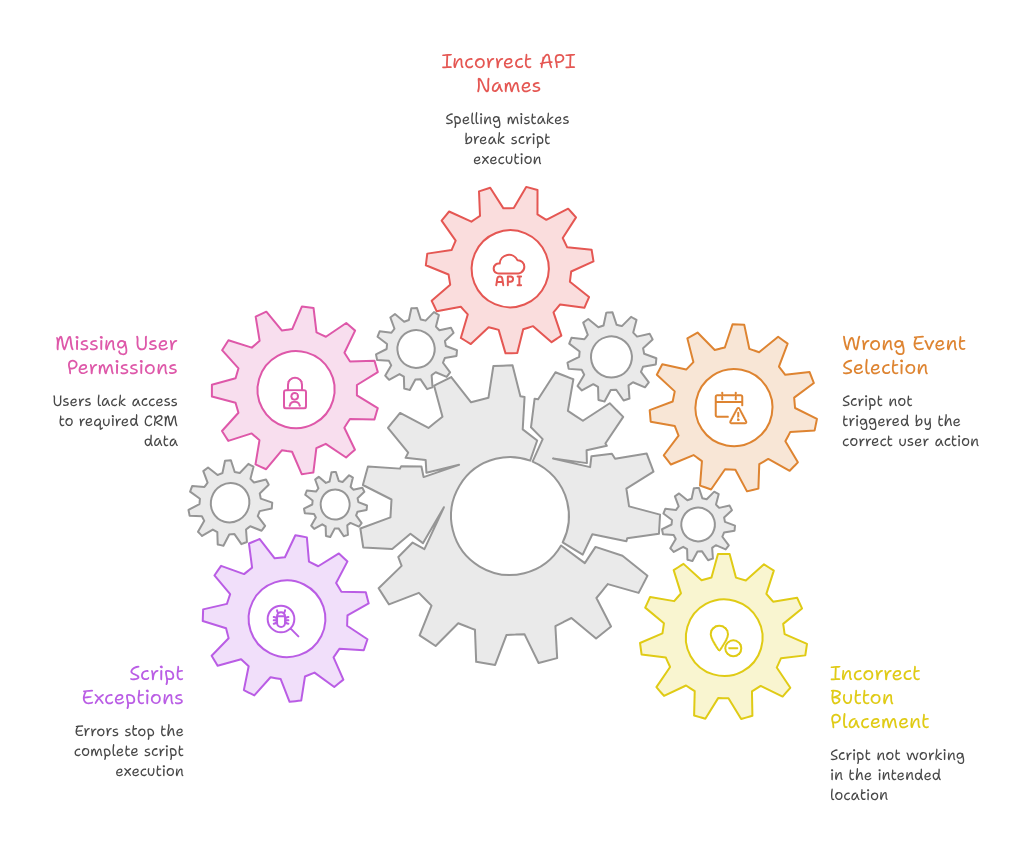
Several technical and configuration problems can create a Zoho Related List Error.
Incorrect Button Placement
Zoho CRM buttons can be placed on detail pages, list views, related lists, or other supported locations.
A script designed for one location may not work properly elsewhere. Therefore, confirm the selected page and button position.
Wrong Event Selection
Client scripts run when a supported user action triggers them. These actions can include page, field, and custom button events.
Selecting the wrong event may cause a Zoho Button Action Failure. The script remains saved, but the required trigger never occurs.
Incorrect API Names
Zoho CRM uses API names to identify modules, fields, buttons, and other components.
A spelling mistake can break Zoho CRM Script Execution. Even a small difference can return an undefined value.
Always copy API names directly from the CRM setup area.
Missing User Permissions
A script may try to read, create, or update CRM data. However, the user may not have permission.
In that situation, the script may work for administrators only. Regular users may face a Related List Button Bug.
Check module access, field permissions, custom function permissions, and profile settings.
Script Exceptions
A missing variable, incorrect condition, or unsupported method can stop the complete script.
Zoho’s Client Script IDE shows execution details, logs, status information, and exception messages.
These messages can help locate the exact Zoho Client Script Bug.
How to Fix a CRM Client Script Issue
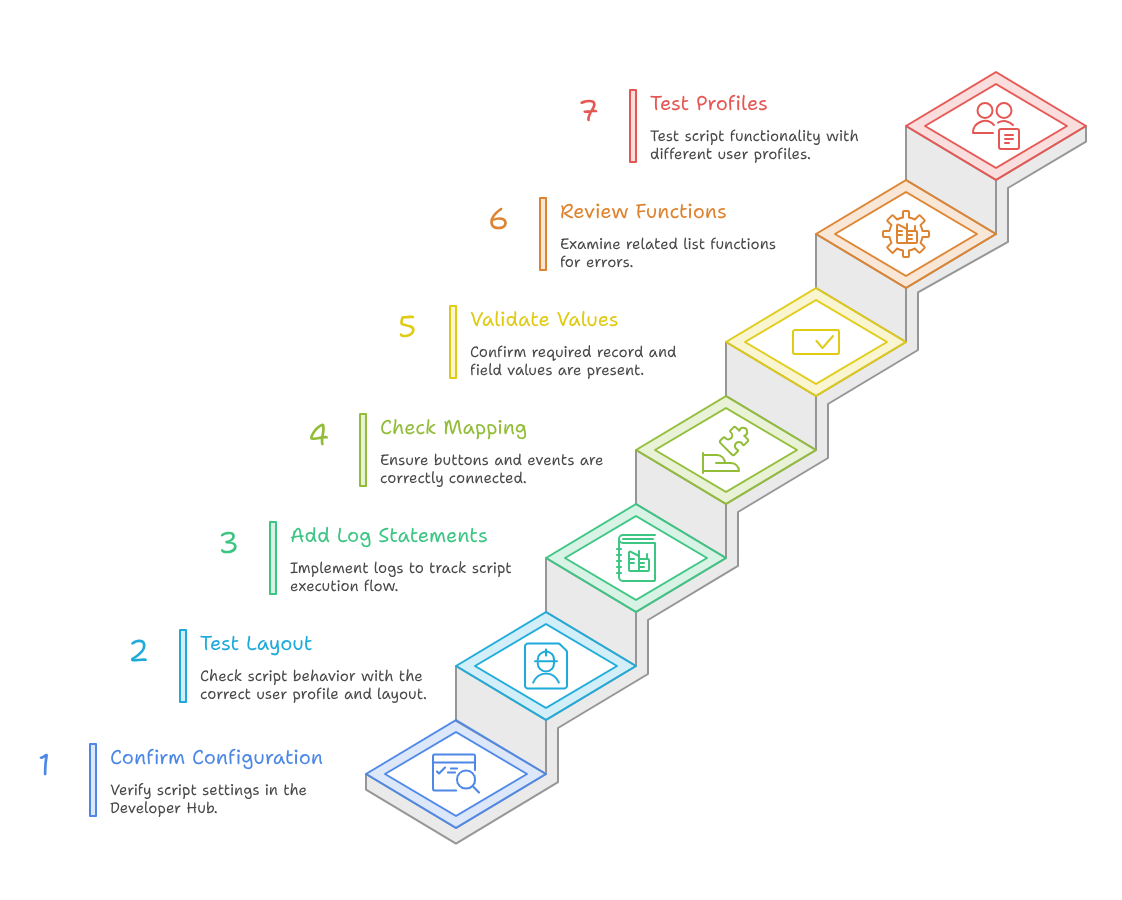
Follow a structured testing process instead of changing several settings together.
Step 1: Confirm the Script Configuration
Open the Client Script section inside the Developer Hub.
Check the selected module, page, layout, event, and script status. Zoho allows administrators to create scripts through the Developer Hub.
Make sure the script is connected to the correct CRM environment.
Step 2: Test the Correct Layout
Open a record using the same profile and layout as the affected user.
This step helps confirm whether the CRM Client Script Issue relates to layout selection.
Create another script when different layouts require the same behaviour.
Step 3: Add Log Statements
Add log statements before important conditions, API calls, and button actions.
Zoho recommends using log statements and the Run option for script debugging.
Logs can show where Zoho CRM Script Execution stops.
For example, log the record ID before requesting related information. Then log the returned response.
Step 4: Check Button and Event Mapping
Confirm that the client script is connected to the intended custom button.
Client Script support for custom buttons allows custom logic during supported button actions.
Incorrect mapping can create a Zoho Button Action Failure.
Also, check whether another button action conflicts with the client script.
Step 5: Validate Record and Field Values
Make sure every required value exists before using it.
A null record ID or empty field can stop the action. Therefore, add conditions for missing values.
This approach reduces unexpected Zoho CRM Script Execution errors.
Step 6: Review Related List Functions
A custom related list may depend on a Deluge or Java function.
Check the function arguments, returned data, permissions, and module references.
A failed function may appear as a Zoho Related List Error instead of a client script problem.
Step 7: Test with Different User Profiles
Test the button as an administrator and a regular CRM user.
When the administrator succeeds, review profile permissions. This method can quickly identify a Related List Button Bug.
Practical Use Case: Creating a Follow-Up from a Related List
Consider a service company using Zoho CRM to manage customer support visits.
The company adds a custom button inside a related list. The button should create a follow-up task.
When a user clicks the button, nothing happens. However, the same action works for an administrator.
The developer checks the logs and finds that the script receives the correct record ID. Therefore, the code itself is working.
Next, the developer reviews the user profile. The profile cannot create activities in the Tasks module.
After updating the permission, the button works correctly.
In this case, the Zoho Client Script Bug was actually a permissions problem. The apparent Zoho Button Action Failure did not require major code changes.
This example shows why businesses should test code, layouts, and user permissions separately.
How to Prevent Future Script and Button Problems
Good development practices can reduce future failures.
Use Clear Script Names
Choose names that describe the module, page, event, and purpose.
Clear naming makes every CRM Client Script Issue easier to investigate.
Keep the Logic Simple
Avoid placing too many unrelated actions inside one script.
Zoho recommends reducing unnecessary client scripts and combining suitable validation logic carefully.
Simple code also improves Zoho CRM Script Execution and maintenance.
Add User-Friendly Messages
Display a clear message when required information is missing.
Do not leave users guessing after a Zoho Related List Error.
For example, explain that a record requires an email address before continuing.
Maintain a Test Environment
Test every change before publishing it for the complete CRM team.
Review buttons, layouts, profiles, related lists, and connected functions.
This process can prevent a new Related List Button Bug from affecting daily operations.
Document Every Customization
Record the purpose, owner, dependencies, and last update for every script.
Documentation helps developers resolve a CRM Client Script Issue faster.
It also protects the business when the original developer becomes unavailable.
When Should You Contact a Zoho Expert?
Simple errors may only require a layout or permission update.
However, complex issues may involve multiple scripts, functions, APIs, widgets, or third-party applications.
A Zoho expert can review the complete workflow instead of fixing one visible symptom.
Professional support is valuable when a Zoho Client Script Bug affects revenue, customer service, or data accuracy.
An expert can also improve the existing code and reduce future maintenance costs.
Conclusion
A Zoho Related List Error or Zoho Button Action Failure can slow down important CRM processes. However, the visible button is not always the real cause.
The problem may involve layouts, events, permissions, API names, functions, or invalid record data.
Start by checking the configuration. Then review logs, permissions, values, and related list functions.
A careful process makes every Zoho CRM Script Execution problem easier to resolve. It also reduces the risk of creating another Related List Button Bug.
Zoho can connect sales, marketing, support, finance, and automation within one flexible business ecosystem. However, successful implementation requires proper planning and technical experience. With iTecZone as a certified Zoho partner, your business receives reliable setup, customization, integration, and support services. Our experienced developers can resolve each CRM Client Script Issue and improve your complete CRM workflow. This makes iTecZone the right choice as your trusted Zoho Consultant Partner.
FAQ’s
Why is my Zoho CRM client script button not working?
The button may use the wrong event, layout, API name, or permission. Check the Client Script IDE logs first.
How can I debug a Zoho Client Script Bug?
Add log statements throughout the code. Then use the Run option to review execution messages and exceptions.
Why does the script work for administrators only?
Regular users may lack module, field, function, or record permissions. Compare their profile settings with administrator access.
Can client scripts work on every Zoho CRM layout?
A script only runs on its configured layout. Additional layouts may require separate client script configurations.
What causes a Zoho Related List Error?
Incorrect function arguments, API names, permissions, or returned data can affect a related list.
How do I fix a Related List Button Bug?
Check the button location, event mapping, record ID, user profile, and connected function.
Can a custom function cause a Zoho Button Action Failure?
Yes. The function may fail because of missing parameters, permissions, authentication, or incorrect data.
Should I use one large script or several small scripts?
Use clear and manageable logic. Avoid unnecessary scripts, but do not combine unrelated processes into one complex file.
When should I hire a Zoho CRM developer?
Hire an expert when the issue involves several modules, APIs, functions, widgets, or business-critical workflows.