A Zoho Client Script Issue can prevent subform fields from updating correctly. This Zoho Client Script Issue often appears on customized Canvas forms. The script may work on a standard page but fail inside Canvas. In other cases, the subform loads correctly, but setValue produces no visible result. These problems usually involve field API names, event timing, page context, or unsupported script behavior.
Zoho CRM client scripts run inside the user’s browser. They help businesses control field behavior and add custom actions. They can also validate data before users save a record. However, scripts must use the correct ZDK methods and supported events.
This guide explains how to troubleshoot subform scripts without making the process overly complicated.
What Is a Zoho Client Script Issue?
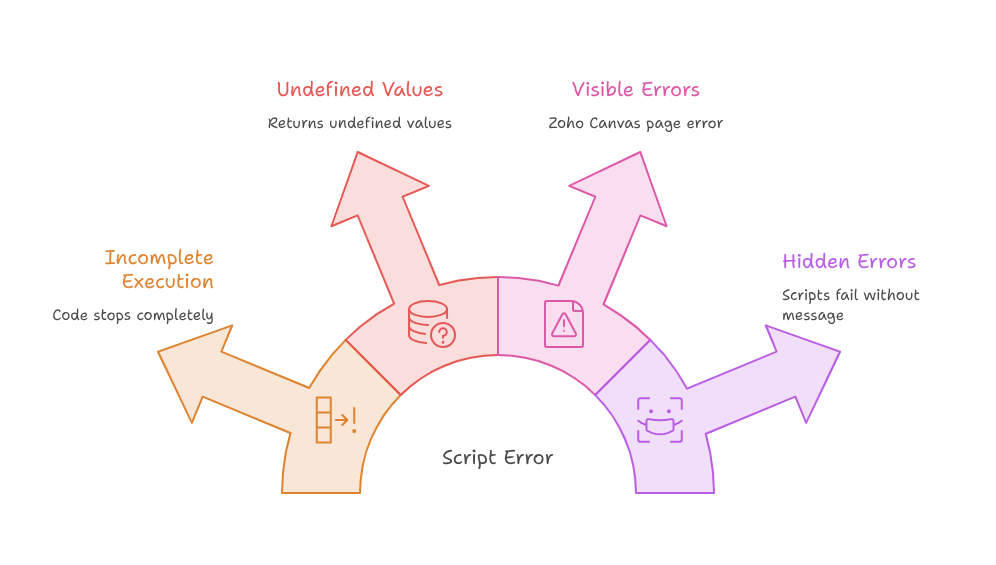
A Zoho Client Script Issue happens when browser-side JavaScript does not behave as expected. The code may stop completely or return an undefined value.
Sometimes, users receive a visible Zoho Canvas page error. However, many scripts fail without displaying any message. This makes the problem harder to identify.
The issue can affect several CRM activities, including:
- Setting values inside subform rows
- Reading data from a subform field
- Applying field conditions
- Validating entries before saving
- Controlling row actions
- Updating calculated values
A Zoho CRM subform issue can also appear after changing a field or layout. The original script may still reference the previous API name.
Why Subform Client Scripts Fail
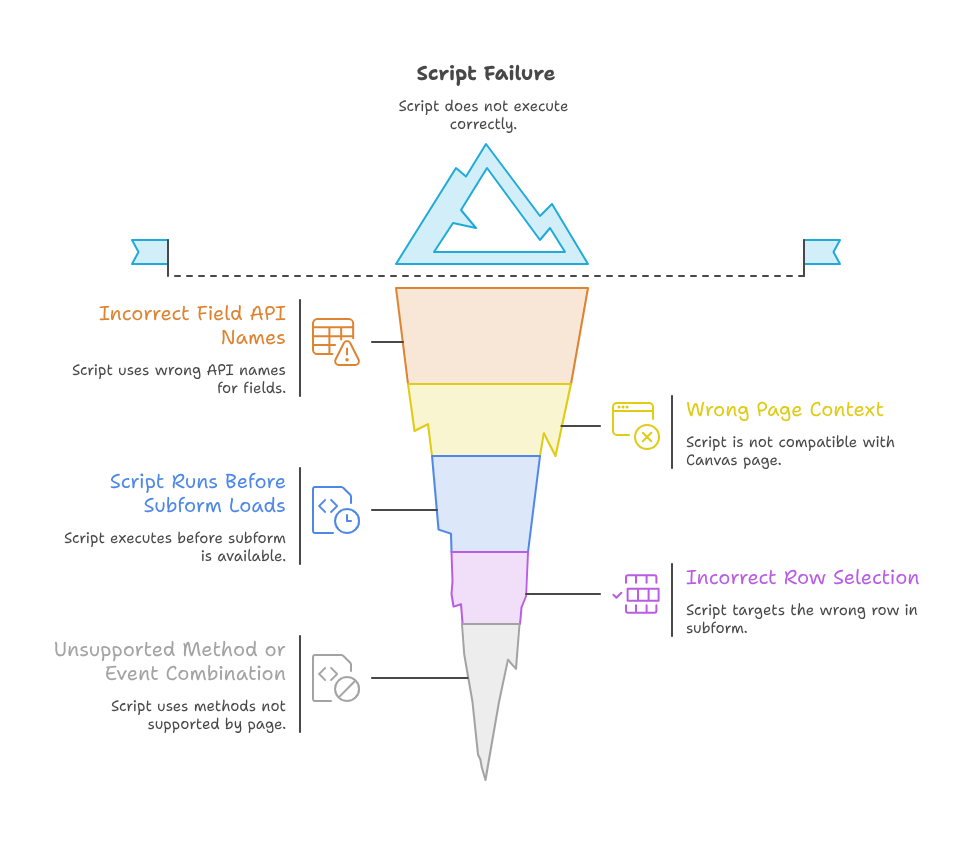
Several technical factors can stop a script from reaching the correct subform.
Incorrect Field API Names
Zoho scripts normally use API names instead of field labels. A label may contain spaces or friendly wording. However, the API name can be completely different.
For example, the visible field label might be “Product Price.” Its API name could be Product_Price.
The same rule applies to the subform name. Therefore, always confirm both API names before testing Zoho subform setValue.
You can review API names through the module settings. You should also check the fields section within the selected layout.
Wrong Page Context
A script written for a standard record page may behave differently inside Canvas. This happens because Canvas uses customized page structures and supported event types.
Zoho supports specific events for Canvas create, clone, and edit record forms. Therefore, the selected event must match the active page.
A Zoho Canvas page error often appears when developers assume every event works everywhere. The script configuration should always match the page type.
Script Runs Before the Subform Loads
Timing is another common problem. The script may execute before the subform component becomes available.
As a result, ZDK Page getSubform may return an empty or unavailable object. Any method used afterward can then fail.
This situation is common during page load events. It can also happen when scripts depend on fields that load dynamically.
Incorrect Row Selection
A subform contains rows, and every row contains fields. Therefore, developers must target the required row correctly.
Calling the subform alone may not update a specific row. The script must identify the correct row and field object.
This is especially important when the subform contains several product entries. Updating the wrong row can create serious data errors.
Unsupported Method or Event Combination
Not every ZDK method works in every CRM interface. Some functions support standard pages but have different Canvas behavior.
Before using ZDK Page getSubform, check the available methods for your page and event. Zoho provides sample client script use cases that access subform fields through ZDK methods.
How to Fix a Zoho CRM Subform Issue
A structured troubleshooting process can save considerable time.
Step 1: Confirm the Script Event
Open the client script configuration and review the selected event.
Check whether the script runs during:
- Page load
- Field change
- Row addition
- Row deletion
- Record save
- Custom button action
Next, confirm whether the event supports your Canvas page. A mismatched event can cause a Zoho Canvas page error.
Step 2: Verify Every API Name
Confirm the API name for:
- The main CRM module
- The subform
- The target field
- The source field
- Any lookup fields
Do not copy the displayed labels into your code. Instead, use the exact API names from the CRM configuration.
This simple check solves many Zoho CRM client script problems.
Step 3: Test the Subform Object
Test whether the script can access the required subform.
A basic example may look similar to this:
var itemsSubform = ZDK.Page.getSubform("Product_Details");

if (itemsSubform) {
    console.log("Subform found");
} else {
    console.log("Subform not available");
}
This test helps confirm whether ZDK Page getSubform returns the expected object.
However, your exact method may depend on the configured event. Always review the current ZDK documentation before deployment.
Step 4: Test One Action at a Time
Do not test a large script all at once. Start by reading one field value.
Next, test access to the subform. After that, test the target row and field.
Finally, apply the Zoho subform setValue logic.
This approach shows exactly where the script stops working.
Step 5: Add Safe Error Handling
Client scripts should not break the entire page after one error.
Use validation before accessing objects. You can also use try and catch for controlled debugging.
try {
    var subform = ZDK.Page.getSubform("Product_Details");

    if (!subform) {
        console.log("Subform could not be accessed");
        return;
    }

    console.log("Subform is ready");
} catch (error) {
    console.log("Client script error:", error);
}
Safe handling provides better visibility during a Zoho Client Script Issue.
Step 6: Test in the Correct Canvas View
A script may work on one page but fail on another.
Test the code on the exact Canvas page used by employees. You should test create, edit, and clone views separately.
Also, check the script under different user profiles. Field permissions may affect the results.
Practical Use Case: Automatic Subform Pricing
Consider a company that creates sales quotes inside Zoho CRM.
The quote form contains a product subform. Each row includes these fields:
- Product
- Quantity
- Unit Price
- Discount
- Total Amount
The business wants the total amount calculated automatically. The calculation should run after quantity or unit price changes.
The expected formula is simple:
Total Amount = Quantity × Unit Price
However, the script works on the standard form and fails inside Canvas. The total field remains empty.
The developer first checks the event configuration. The script was connected to a standard field event instead of the Canvas event.
Next, the developer confirms the subform API name. The script used Product Details, which was the field label. The actual API name was Product_Details.
Finally, the developer checks the row field API names. The total field used Total_Amount, not Total.
After these changes, the Zoho subform setValue action starts working correctly.
This example shows why a Zoho CRM subform issue is not always a coding problem. Configuration and context are equally important.
Common Mistakes to Avoid
Using Labels Instead of API Names
Displayed labels can change at any time. API names remain the correct script references.
Therefore, verify every field before writing the final code.
Copying Code Between Different Modules
A script from Deals may not work inside Quotes. The modules can have different subforms and field names.
Review every reference before reusing Zoho CRM client script code.
Ignoring User Permissions
A field can exist but remain unavailable to certain profiles. This can make the script appear inconsistent.
Test the solution with every important user role.
Updating Several Fields Together
Large scripts make debugging difficult. They also increase the chance of hidden dependencies.
Split complex logic into smaller functions whenever possible.
Publishing Without Testing Canvas Pages
Canvas forms can use different structures and events. Therefore, standard page testing is not enough.
Always test the exact page used in daily operations.
Best Practices for Reliable Client Scripts
Keep each script focused on one business requirement. Smaller scripts are easier to test and maintain.
Use clear variable names that explain each object. Avoid vague names like data, value, or item.
Document the required event and page type. This helps future developers understand the original setup.
Add checks before using a field or subform object. These checks prevent unexpected page failures.
Review the browser console during testing. Console messages can reveal missing objects and incorrect field references.
Finally, test every Zoho CRM client script after layout changes. A small CRM update can affect existing field references.
Conclusion
A Zoho Client Script Issue can disrupt data entry, pricing, calculations, and record validation. However, most subform problems have clear causes.
Start by checking API names, events, permissions, and Canvas page context. Then, test each part of the script separately.
The correct use of ZDK Page getSubform is also important. Developers must access the intended subform, row, and field before applying changes.
A reliable Zoho subform setValue solution should also include validation and safe error handling. These practices reduce failures and make future maintenance easier.
Zoho can connect sales, finance, marketing, support, and operations within one flexible business ecosystem. However, successful implementation requires careful planning and technical experience. With iTecZone as a certified Zoho partner, you can access expert support across Zoho applications. Our experienced developers can configure, customize, integrate, and troubleshoot your complete Zoho environment. This makes iTecZone the right choice as your trusted Zoho Consultant Partner.
FAQ’s
What causes a Zoho Client Script Issue in a subform?
The issue can involve incorrect API names, unsupported events, permissions, timing, or Canvas page differences.
Why does Zoho subform setValue not update the field?
The script may target the wrong row or field. The subform may also be unavailable during execution.
Can I use ZDK Page getSubform on a Canvas page?
It may be used in supported Canvas events and contexts. Always confirm the current event and method support.
Why does my script work on standard pages only?
Canvas pages have customized structures and specific supported events. Your script configuration may not match the Canvas environment.
How can I identify a Zoho Canvas page error?
Check the browser console and test each script action separately. Also, confirm the event, API names, and profile permissions.
Does every Zoho CRM subform issue require new code?
No. Many issues come from incorrect settings, renamed fields, wrong events, or insufficient permissions.
Should I test client scripts under different user profiles?
Yes. Different profiles can have different field access. Testing prevents unexpected results after deployment.
Can client scripts calculate values inside subform rows?
Yes. A script can calculate and populate values when the selected event and ZDK methods support that action.
When should I contact a Zoho expert?
Contact an expert when scripts affect important workflows or produce inconsistent data. Expert review can prevent larger CRM problems.