The Zoho CRM Functions Tab helps businesses create custom actions and automate complex tasks. However, the Zoho CRM Functions Tab may sometimes disappear or stop working. This problem can prevent administrators from viewing, editing, or creating important functions.
Several issues can cause the Zoho CRM Functions Missing problem. These include limited permissions, incorrect profile settings, browser errors, subscription limits, or recent account changes. A general Zoho CRM Settings Issue may also hide automation tools from certain users.
Fortunately, most visibility problems can be fixed without rebuilding your CRM system. This guide explains the likely causes and practical solutions.
What Is the Zoho CRM Functions Tab?
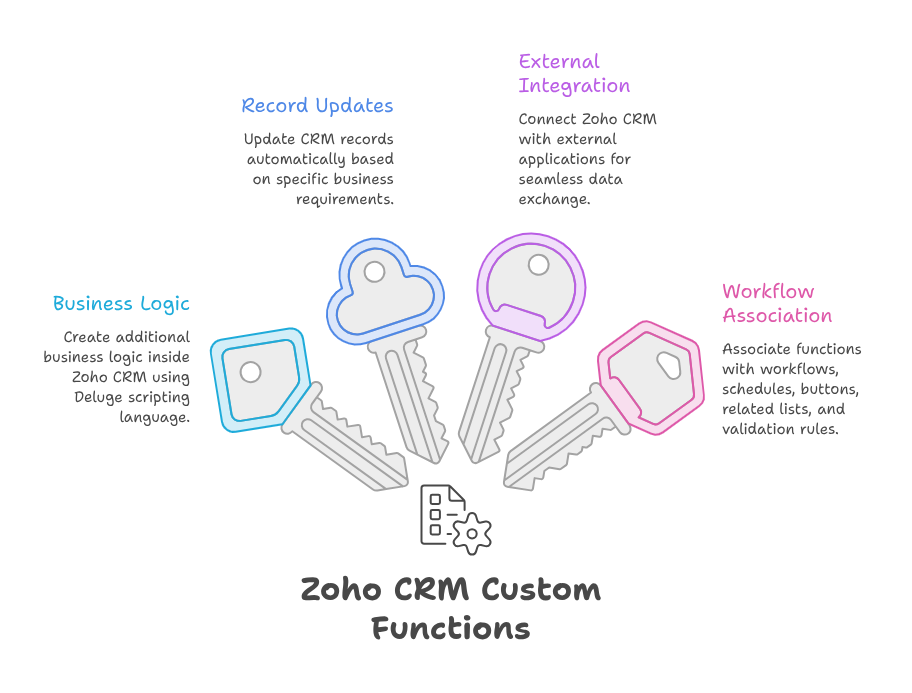
The Functions area allows administrators and developers to create additional business logic inside Zoho CRM. These functions use Deluge, which is Zoho’s scripting language.
Businesses can use functions to update CRM records or connect Zoho CRM with external applications. They can also associate functions with workflows, schedules, buttons, related lists, and validation rules.
For example, a function can calculate a sales commission after a deal closes. Another function can send customer information to an accounting platform.
Because of these capabilities, Zoho CRM Custom Functions are important for advanced business automation.
Why Is the Zoho CRM Functions Tab Missing?
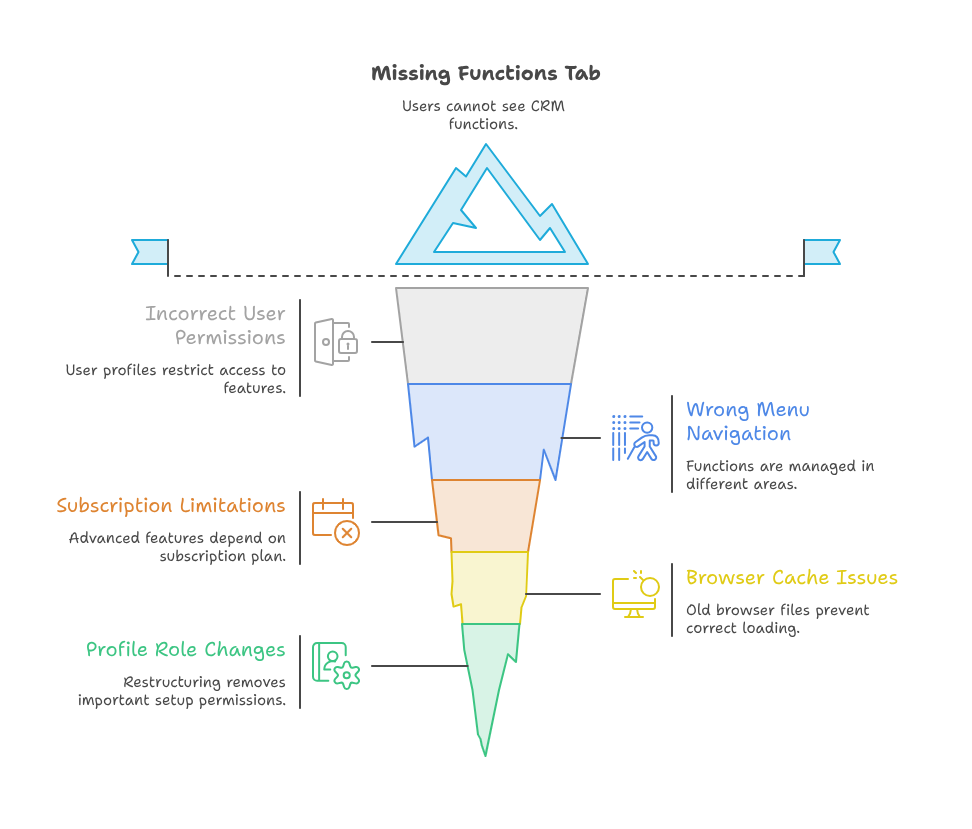
When users report CRM Functions Not Visible, the function itself may not be deleted. Instead, the account may prevent that user from accessing the relevant section.
Several common reasons can create this problem.
Incorrect User Profile Permissions
User profiles control which features each person can access. Zoho CRM administrators can enable or disable setup and automation permissions for different profiles.
Therefore, a user may access leads and deals but cannot open automation settings. This situation often creates a Zoho CRM Access Error.
The administrator should review the affected user’s profile. They should confirm that automation and setup permissions are enabled.
The User Is Checking the Wrong Menu
Zoho CRM features can appear in different areas, depending on their purpose. Standalone functions are commonly managed through the Functions area within the Developer Hub.
However, functions linked with workflows may also appear while configuring workflow actions. Zoho documents functions as actions that can run when workflow conditions are met.
Therefore, Zoho CRM Functions Missing may simply mean the user is checking an unrelated menu.
Subscription or Edition Limitations
Some advanced CRM features depend on the organization’s subscription and available permissions. A user may lose access after a trial expires or a plan changes.
Additionally, the account may have recently moved to another Zoho package. That change can affect available customization and automation options.
The administrator should review the active subscription before changing other settings. This step can quickly identify a plan-related Zoho CRM Settings Issue.
Browser Cache or Loading Problems
Old browser files may prevent Zoho CRM pages from loading correctly. The settings page may open, while some tabs remain blank or unavailable.
Browser extensions can also block scripts used by cloud applications. Privacy tools, advertising blockers, and security extensions may affect CRM navigation.
Consequently, a temporary browser problem may make CRM Functions Not Visible, even when permissions are correct.
Recent Profile or Role Changes
A CRM administrator may update user roles during restructuring. However, the assigned profile could remove important setup permissions.
The user may then experience a Zoho CRM Access Error without receiving a clear explanation. Logging out and signing in again may also be required after permission changes.
How to Fix the Zoho CRM Functions Tab
The following steps can help you find and resolve the problem.
Step 1: Confirm the Correct Login Account
First, check the email address used for signing into Zoho CRM. Many professionals belong to multiple Zoho organizations.
The wrong organization may have different modules, permissions, and subscription settings. Therefore, confirm that you opened the correct CRM account.
Next, check whether the affected user is active. An inactive or restricted user may not access advanced settings.
Step 2: Review Profile Permissions
Open the CRM setup area and locate the user management settings. Then, identify the profile assigned to the affected user.
Review its setup and automation permissions carefully. Profiles determine which configuration features each user can manage.
Enable the required permissions and save the profile. Afterwards, ask the user to sign out and sign back in.
This process often resolves a permission-based Zoho CRM Access Error.
Step 3: Check the Developer Hub
Go to the CRM setup area and open the Developer Hub. Then, look for the Functions section.
Zoho’s developer documentation places standalone functions under Setup, Developer Hub, and Functions.
If the section appears there, the feature is working correctly. The earlier problem may have involved incorrect navigation.
This check is useful when someone reports CRM Functions Not Visible under workflow settings.
Step 4: Review Workflow Actions
Some Zoho CRM Custom Functions are created or connected through workflow rules. Open the relevant workflow and inspect its instant or scheduled actions.
Confirm that the workflow still contains the correct function. Also, check whether another administrator removed or replaced that action.
A workflow needs an associated action to perform an automated task. These actions can include field updates, emails, webhooks, and custom functions.
Step 5: Test Another Browser
Open Zoho CRM in a private browsing window. Alternatively, use another supported browser.
If the Zoho CRM Functions Tab appears, the original browser likely contains outdated data. Clear its cache and cookies before testing again.
Temporarily disable unnecessary extensions as well. Then, reload Zoho CRM and check the Developer Hub.
Step 6: Confirm the CRM Subscription
Review the organization’s Zoho CRM edition and recent billing changes. Compare the active plan with the features required by your automation.
If the feature disappeared after a downgrade, contact Zoho support or your implementation partner. They can confirm whether the active edition supports your required setup.
This review can resolve a subscription-related Zoho CRM Settings Issue.
Step 7: Check Function Usage and Errors
The tab may be visible, while individual functions still fail. In that situation, review the function code, connections, and execution information.
Zoho CRM provides function analytics for checking executions, usage patterns, successes, and failures.
Also, remember that function executions use credits. Daily execution limits can affect automation when many functions run together.
Testing each function separately can help identify the exact failure.
Practical Use Case: Missing Sales Order Automation
Consider a company that creates a sales order after every approved deal. It uses one of its Zoho CRM Custom Functions for this process.
One morning, the sales manager notices that new sales orders are not being created. The manager opens settings but finds Zoho CRM Functions Missing from the expected location.
The CRM administrator checks the manager’s profile. A recent security update removed the Manage Automation permission.
After restoring the permission, the Zoho CRM Functions Tab becomes available again. The administrator then tests the function using a sample deal.
The function works, and the sales order is created successfully. In this case, the code was never damaged.
The actual cause was a profile-based Zoho CRM Access Error. This example shows why permissions should be checked before editing function code.
How to Prevent Future Functions Access Problems
Maintain clear documentation for every CRM profile and permission. Record who can manage workflows, integrations, and functions.
Additionally, avoid giving full administrator access to every user. Instead, provide only the permissions required for each role.
Test major profile changes using a non-administrator account. This approach can reveal a Zoho CRM Settings Issue before it affects daily operations.
You should also document all important Zoho CRM Custom Functions. Include their purpose, triggers, connected applications, and responsible administrator.
Finally, review function performance and failures regularly. Early monitoring can prevent small errors from disrupting important processes.
Conclusion
A missing or unresponsive Zoho CRM Functions Tab does not always indicate deleted automation. In many cases, incorrect permissions, browser problems, or navigation confusion cause the issue.
Start by confirming the user’s account, profile, subscription, and correct menu location. Afterwards, review workflow actions and test the CRM in another browser.
When CRM Functions Not Visible, avoid changing working code without proper testing. First, identify whether the problem affects access, visibility, or execution.
Zoho can connect sales, marketing, support, finance, and operations within one business ecosystem. However, proper implementation is essential for reliable performance. With iTecZone as a certified Zoho partner and a team of experienced developers, you can access professional services for Zoho applications. Therefore, iTecZone is the right choice as your Zoho Consultant Partner for implementation, customization, integration, and support.
FAQs
Why is my Zoho CRM Functions Tab not showing?
The assigned profile may not include the required setup or automation permissions. Incorrect navigation or subscription changes may also hide it.
How do I fix Zoho CRM Functions Missing?
Check the user profile, Developer Hub, subscription, and browser cache. Then, sign out and sign back into the account.
Where can I find Zoho CRM Custom Functions?
Standalone functions are generally available through Setup, Developer Hub, and Functions. Workflow-related functions may also appear within workflow actions.
Why are CRM Functions Not Visible for one user?
That user probably has a different profile or permission level. Compare their profile with an administrator who can access the feature.
Can browser problems hide the Functions tab?
Yes. Cached files, blocked scripts, or browser extensions may affect page loading. Test Zoho CRM in a private window.
What causes a Zoho CRM Access Error?
Restricted profile permissions, inactive users, incorrect organizations, or subscription limitations can cause access errors.
Can a Zoho CRM Settings Issue stop a function from running?
Yes. Workflow changes, disabled connections, incorrect arguments, or permission updates may stop a function from working correctly.
Should I recreate a missing custom function?
Do not recreate it immediately. First, confirm whether the function exists under another account, workflow, or Developer Hub section.
How can I test a Zoho CRM function safely?
Use a test record and review the expected result. You should also inspect execution information before applying changes to live records.
When should I contact a Zoho CRM expert?
Contact an expert when permissions appear correct, but the tab remains unavailable. Expert help is also useful for failed integrations or complex Deluge code.