A ZOHO CRM Record Open issue can stop users from accessing records through widgets or custom pages. When ZOHO CRM Record Open fails, users may see blank screens, loading errors, or no response. This problem often affects custom widgets, Web Tabs, event dashboards, and embedded CRM applications.
The error may seem difficult at first. However, it usually comes from incorrect record details, permissions, or widget setup. A missing record ID can stop the action. An incorrect module name can also cause the same problem.
In some cases, ZOHO.CRM.UI.Record.open does not receive the correct information from the widget. Therefore, the requested record never opens.
This guide explains the common causes and practical solutions. It also covers testing methods for custom widgets, Web Tabs, and event records.
What Is ZOHO.CRM.UI.Record.open?
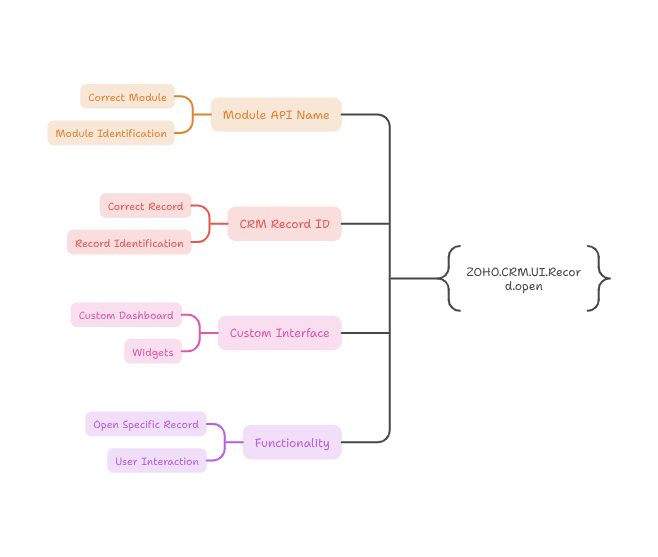
ZOHO.CRM.UI.Record.open is a client-side function used in Zoho CRM extensions and widgets. It allows developers to open a specific CRM record from a custom interface.
For example, a custom dashboard may show recent leads, deals, meetings, or support cases. A user can click one item to open its full CRM record.
The function normally requires two important values:
- The module API name
- The CRM record ID
Both values must be correct. Otherwise, the record opening action may fail.
The module API name identifies the correct CRM module. Meanwhile, the record ID identifies the exact record inside that module.
Common Reasons the Record Does Not Open
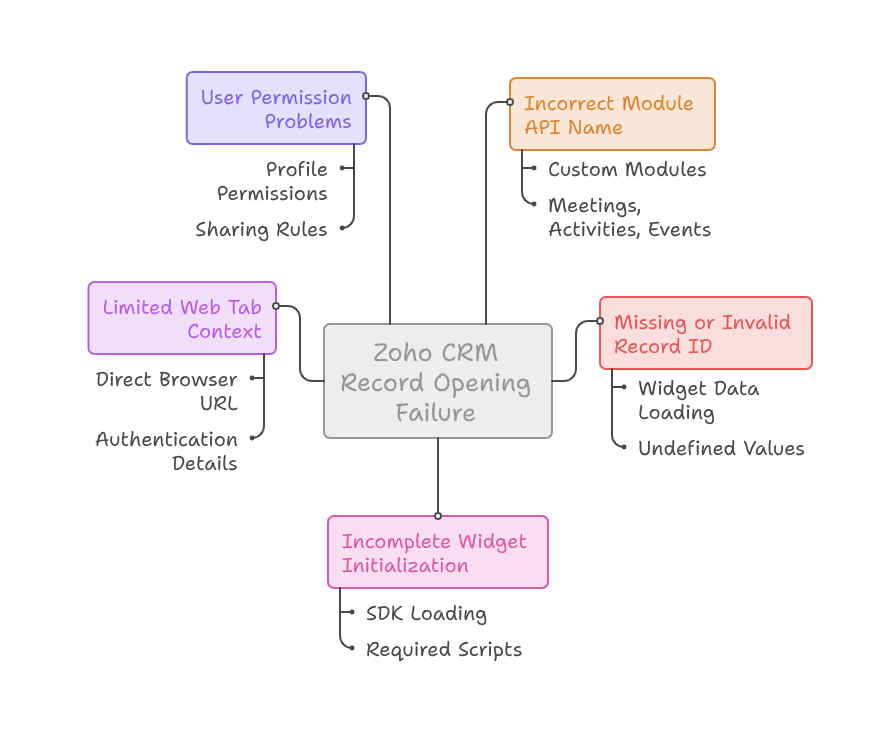
Several problems can prevent the record from opening. Checking each area separately can make debugging easier.
Incorrect Module API Name
The module name must match the actual Zoho CRM API name. A visible module label may not always work.
For example, a custom module can have a different API name. Its displayed name may look completely different.
The same issue can happen with meetings, activities, and events. An incorrect module value can prevent ZOHO.CRM.UI.Record.open from running properly.
Always check the module API name inside Zoho CRM settings. Do not rely only on the visible module title.
Missing or Invalid Record ID
A valid record ID is required for every record opening action. An empty or incomplete ID will cause failure.
Sometimes, widget data loads slowly. The user may click a button before the record ID becomes available.
The widget may then send an undefined value. As a result, the CRM cannot identify the requested record.
This situation is common when opening a Zoho CRM Events record from a custom events dashboard.
Developers should check the record ID before calling the function. They should also remove spaces or unwanted characters.
Incomplete Widget Initialization
Every Zoho CRM widget must initialize correctly before using embedded SDK functions.
The page may appear ready before the Zoho CRM SDK finishes loading. Therefore, a click action may run too early.
This timing problem can create a Zoho CRM widget issue without showing a helpful message.
The record action should run only after the initialization process finishes. Developers should also confirm that all required scripts have loaded.
Limited Web Tab Context
A Zoho Web Tab error may happen when the custom page lacks the required CRM context.
Some developers test a widget through a direct browser URL. However, certain CRM functions only work inside the Zoho CRM environment.
The direct page may load successfully. Still, it may not receive authentication details or CRM record information.
Test the page inside the actual Web Tab. Also confirm that the user session is active.
User Permission Problems
The user must have access to the selected module and record. Otherwise, the CRM may block the request.
An administrator may open the record successfully. However, a standard user may see a Zoho Internal Server Error.
This difference usually indicates a permission problem. The affected profile may lack module access or record visibility.
Check profile permissions, sharing rules, territories, and record ownership. Field-level restrictions may also affect custom widget actions.
How to Fix the Record Opening Problem
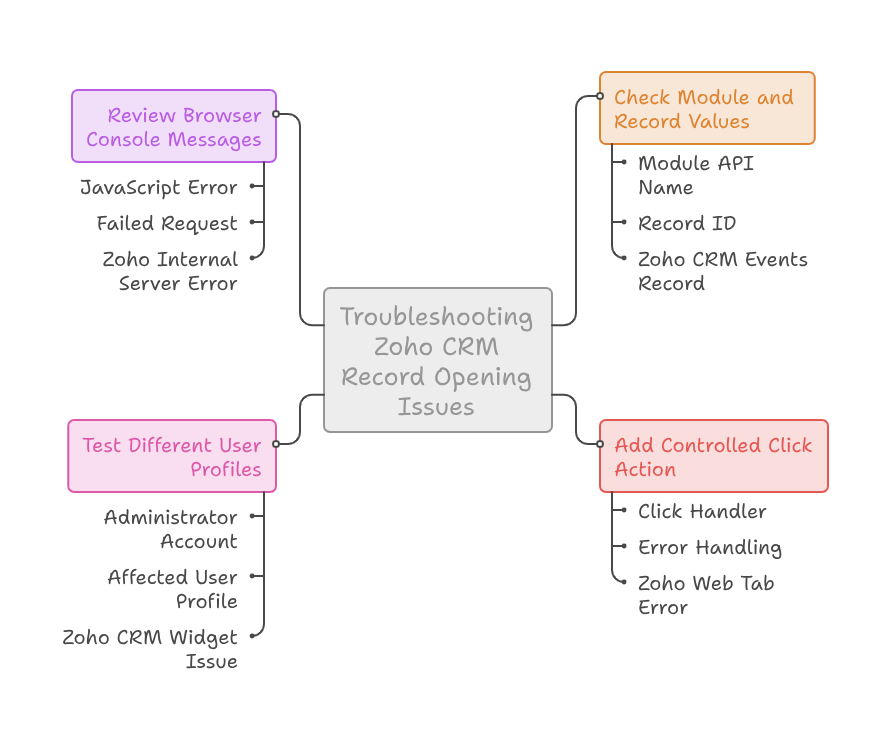
A structured testing process can help identify the source quickly.
Check the Module and Record Values
First, check the module API name in the browser console. Then check the selected record ID.
Both values should appear before the function runs. The record ID must also belong to the selected module.
This check is important for a Zoho CRM Events record. Events may come from related lists, calendars, or custom API responses.
Avoid using hardcoded values during final deployment. Instead, use verified values from the current CRM data.
Add a Controlled Click Action
Place the record opening function inside one clear click handler. Do not run it automatically during page loading.
The user action should call ZOHO.CRM.UI.Record.open after the widget finishes initialization.
Developers should also add error handling around the function. A clear console message can reveal missing values immediately.
This approach helps separate a coding problem from a Zoho Web Tab error.
Test Different User Profiles
Test the same widget with an administrator account. After that, test it with the affected user profile.
When only the administrator succeeds, review permissions and data sharing settings.
When both accounts fail, review the code, record values, and SDK setup.
This comparison can save time during a Zoho CRM widget issue investigation.
Review Browser Console Messages
Open the browser developer tools before clicking the record. Then review the console and network tabs.
A JavaScript error may stop the function before it reaches Zoho CRM.
A failed request may also explain a general Zoho Internal Server Error. The console usually provides more useful details.
Record the exact error message and user action. This information helps developers reproduce the problem.
Practical Use Case Example
Consider a recruitment company using a custom CRM interview dashboard.
The dashboard displays candidate names, interview times, recruiters, and meeting statuses. Each row includes a button for opening the related event.
The recruiter clicks a button to view the Zoho CRM Events record. However, nothing happens.
Some users also receive a Zoho Internal Server Error after repeated clicks.
The developer reviews the widget and finds two problems. First, the module API name is incorrect. Second, the record ID loads after the button becomes active.
The developer corrects the module name. The click button also remains disabled until the record information loads.
After these changes, the event opens successfully. Recruiters can now access interview details without searching manually.
This solution improves navigation and saves time. It also creates a smoother experience for the recruitment team.
How to Prevent Future Widget Errors
Developers should validate all values before opening any CRM record.
Always use the correct API names for standard and custom modules. Store record IDs in clear and reliable variables.
The widget should wait for SDK initialization. In addition, all actions should include basic error handling.
Testing should cover administrators and regular users. This process can reveal hidden permission differences.
A friendly message should appear when the action fails. Users should not see technical or confusing server messages.
For example, the message can ask users to refresh the page. It can also direct them to their CRM administrator.
Regular testing is also important after CRM changes. Module updates, layouts, permissions, or scripts can affect widget behaviour.
Document the widget structure and module dependencies. Good documentation makes future updates easier.
Conclusion
A ZOHO CRM Record Open failure can disrupt widgets, Web Tabs, and custom dashboards. However, the cause is usually identifiable.
Start by checking the module API name and record ID. Next, confirm widget initialization and user permissions.
You should also test the action inside the actual Zoho CRM environment. Direct browser testing may not provide the required CRM context.
A Zoho CRM widget issue can come from small development mistakes. Therefore, careful testing and error handling are essential.
Zoho gives businesses powerful tools for sales, marketing, support, finance, and automation. However, proper implementation is necessary for reliable results.
With iTecZone as a certified Zoho partner, you can access expert support for all Zoho applications. Our experienced developers can manage widgets, integrations, workflows, custom functions, and CRM automation.
This makes iTecZone the perfect choice as your trusted Zoho Consultant Partner.
FAQ’s
Why is my Zoho CRM record not opening?
The module name or record ID may be incorrect. Widget initialization and user permissions can also cause the problem.
What information does the record opening function require?
It requires the correct module API name and a valid CRM record ID.
Can this issue affect only certain users?
Yes. Different users may have different module permissions, sharing access, or territory restrictions.
Why does my widget work for an administrator?
The administrator usually has broader record and module access. The standard user may have restricted permissions.
What causes a Zoho Web Tab error?
It may result from an expired session, missing SDK context, browser restrictions, or incorrect widget configuration.
Can I open an event through a custom Zoho CRM widget?
Yes. You must provide the correct Events module value and a valid event record ID.
How should I investigate a server error?
Review the browser console, network requests, record ID, module name, and user permissions.
Can a Zoho partner fix custom widget problems?
Yes. An experienced Zoho partner can troubleshoot code, permissions, SDK setup, integrations, and custom CRM behaviour.