A Zoho Email Address Blocked warning can interrupt follow-ups, sales conversations, and important customer communication. The Zoho Email Address Blocked message usually appears after Zoho detects repeated delivery failures. Therefore, users should identify the bounce reason before sending another email.
This issue may affect one contact, several records, or the entire sender account. It may also appear beside a contact’s email field in Zoho CRM. Sometimes, the problem comes from an incorrect recipient address. However, poor domain authentication can also cause delivery problems.
The correct solution depends on the bounce type and the displayed error message. This guide explains how to find the cause and restore reliable email delivery.
What Does Zoho Email Address Blocked Mean?
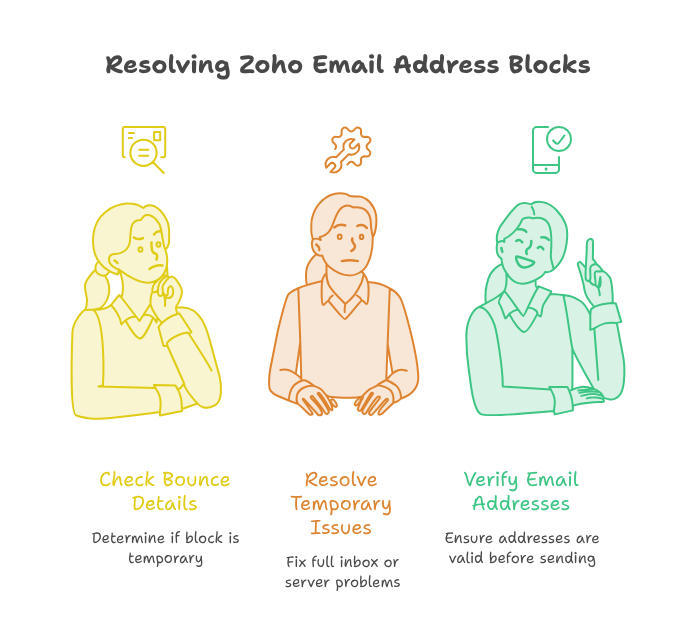
The Zoho Email Address Blocked status means Zoho has stopped emails from reaching a specific address. This protection helps prevent repeated bounces and protects the sender’s reputation.
Zoho CRM tracks failed email delivery attempts. When an address repeatedly rejects messages, Zoho may block further sending. The block prevents users from continuing to email an invalid or unavailable address.
A Zoho CRM bounce issue can be temporary or permanent. Therefore, checking the bounce details is the first important step.
Temporary Email Blocks
A temporary block often happens because of a soft bounce. Common reasons include:
- A full recipient inbox
- A temporarily unavailable mail server
- A message exceeding the recipient’s size limit
- Temporary spam filtering
- A short-term server connection problem
Zoho CRM may provide an unblock option for temporary bounce conditions. However, users should resolve the original cause before selecting it.
Permanent Email Blocks
A permanent block often results from a hard bounce. This may happen when the address or domain does not exist.
For example, an employee may have left the recipient company. As a result, their mailbox may have been deleted.
Hard bounces can damage the sender’s reputation when they happen frequently. Therefore, users should verify addresses before adding them to campaigns or automated workflows.
Common Causes of Zoho CRM Email Blocked Errors
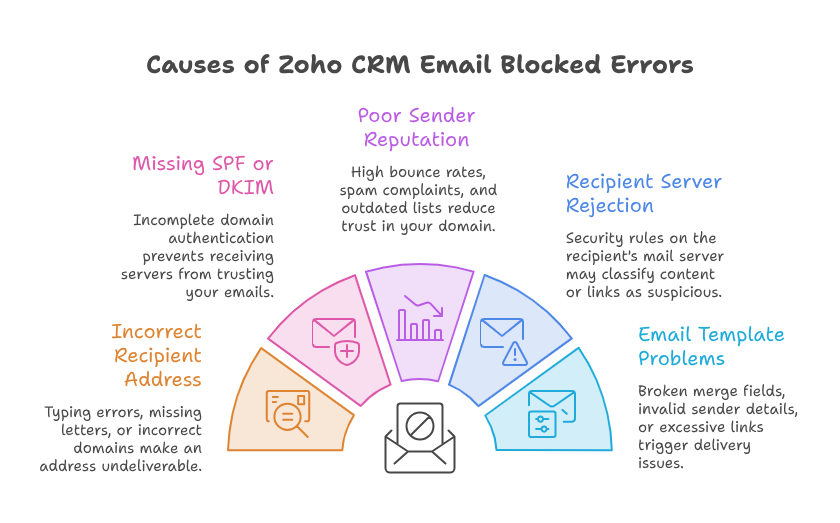
Several technical and data-related problems can cause a Zoho CRM email blocked warning.
Incorrect Recipient Email Address
Typing errors remain one of the most common causes. A missing letter or incorrect domain can make an address undeliverable.
Review the complete email address carefully. Also, confirm the address directly with the customer when possible.
Do not unblock an address without checking it first. Otherwise, another bounce may occur immediately.
Missing SPF or DKIM Records
Incomplete domain authentication can create a Zoho CRM email sending problem. Receiving servers may not trust emails sent from an unauthenticated domain.
SPF identifies the servers permitted to send emails for your domain. Meanwhile, DKIM adds a digital signature to outgoing messages.
Correct SPF DKIM authentication Zoho settings improve authenticity and support better delivery. Zoho CRM uses these authentication methods to reduce spam classification risks.
Poor Sender Reputation
A high number of bounces can reduce trust in your sending domain. Spam complaints and outdated contact lists can also harm your reputation.
Moreover, sending large volumes without proper list maintenance may trigger restrictions. Your messages may then reach spam folders or face rejection.
Recipient Server Rejection
Sometimes, the recipient’s mail server rejects the message. Its security rules may classify the sender, content, or links as suspicious.
In that case, review the returned SMTP error. The code may identify spam filtering, mailbox problems, or domain restrictions.
Problems Inside an Email Template
A Zoho email template error may also affect delivery or prevent the message from sending correctly. Broken merge fields, invalid sender details, and unsupported content can cause problems.
Large images may increase the message size. Similarly, excessive links may trigger stricter spam checks.
Review the template before using it again. Then, send a test message to a trusted address.
How to Fix Zoho Email Address Blocked in CRM
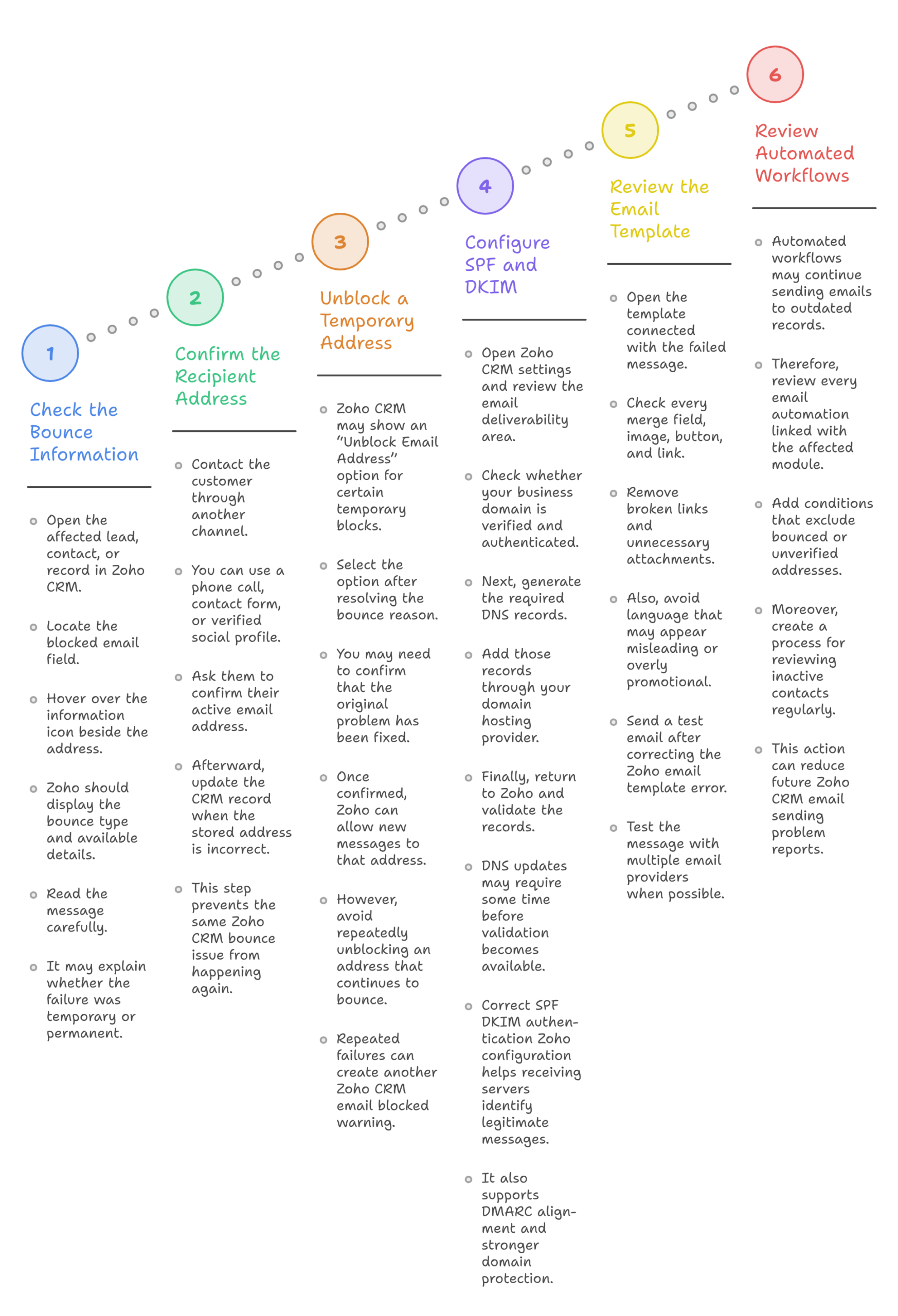
A structured review can help you solve the issue without creating additional bounces.
Step 1: Check the Bounce Information
Open the affected lead, contact, or record in Zoho CRM. Next, locate the blocked email field.
Hover over the information icon beside the address. Zoho should display the bounce type and available details.
Read the message carefully. It may explain whether the failure was temporary or permanent.
Step 2: Confirm the Recipient Address
Contact the customer through another channel. You can use a phone call, contact form, or verified social profile.
Ask them to confirm their active email address. Afterward, update the CRM record when the stored address is incorrect.
This step prevents the same Zoho CRM bounce issue from happening again.
Step 3: Unblock a Temporary Address
Zoho CRM may show an “Unblock Email Address” option for certain temporary blocks. Select the option after resolving the bounce reason.
You may need to confirm that the original problem has been fixed. Once confirmed, Zoho can allow new messages to that address.
However, avoid repeatedly unblocking an address that continues to bounce. Repeated failures can create another Zoho CRM email blocked warning.
Step 4: Configure SPF and DKIM
Open Zoho CRM settings and review the email deliverability area. Check whether your business domain is verified and authenticated.
Next, generate the required DNS records. Add those records through your domain hosting provider.
Finally, return to Zoho and validate the records. DNS updates may require some time before validation becomes available.
Correct SPF DKIM authentication Zoho configuration helps receiving servers identify legitimate messages. It also supports DMARC alignment and stronger domain protection.
Step 5: Review the Email Template
Open the template connected with the failed message. Check every merge field, image, button, and link.
Remove broken links and unnecessary attachments. Also, avoid language that may appear misleading or overly promotional.
Send a test email after correcting the Zoho email template error. Test the message with multiple email providers when possible.
Step 6: Review Automated Workflows
Automated workflows may continue sending emails to outdated records. Therefore, review every email automation linked with the affected module.
Add conditions that exclude bounced or unverified addresses. Moreover, create a process for reviewing inactive contacts regularly.
This action can reduce future Zoho CRM email sending problem reports.
Practical Use Case: A Sales Team Facing Email Blocks
Consider a software company using Zoho CRM for lead follow-ups. Its sales team imports several thousand contacts from an old spreadsheet.
Soon, representatives notice multiple Zoho Email Address Blocked warnings. Several contacts also show a recurring Zoho CRM bounce issue.
The company reviews its data and finds many outdated addresses. In addition, its domain lacks complete authentication.
First, the team removes invalid contacts. Next, the administrator completes SPF DKIM authentication Zoho configuration.
The team also corrects a Zoho email template error caused by an outdated tracking link. Finally, it updates workflows to exclude bounced contacts.
After these changes, the company experiences fewer delivery failures. Its sales representatives can also focus on verified prospects.
This example shows why unblocking alone is not enough. Businesses must correct the source of each Zoho CRM email sending problem.
How to Prevent Future Zoho CRM Email Problems
Prevention protects your sender reputation and improves communication quality.
Clean your CRM contact list regularly. Remove duplicate records, invalid addresses, and contacts without proper consent.
Authenticate every sending domain with SPF and DKIM. Furthermore, review DMARC settings with a qualified email specialist.
Test templates before launching automated campaigns. A hidden Zoho email template error can affect thousands of messages.
Monitor bounce reports every week. Early action can prevent a small Zoho CRM bounce issue from becoming a larger problem.
Finally, avoid sending repeated emails to unresponsive or rejected addresses. A responsible sending process reduces the chance of another Zoho CRM email blocked status.
Conclusion
A Zoho Email Address Blocked warning should not be ignored. It often reveals invalid contact data, authentication gaps, or recipient server restrictions.
Start by checking the bounce reason. Then, verify the address and correct any domain configuration problems.
Proper SPF DKIM authentication Zoho settings can improve trust and email deliverability. Clean data and tested templates also reduce unnecessary bounces.
Zoho can connect sales, marketing, customer service, and business communication within one flexible ecosystem. However, proper configuration remains essential for reliable results.
With iTecZone as a certified Zoho partner, your business can access professional support across Zoho applications. Our experienced developers can configure, customize, integrate, and optimize your Zoho environment.
Therefore, iTecZone is the right choice as your Zoho Consultant Partner. Contact our team to resolve your email issues and build a more dependable Zoho CRM system.
FAQ’s
Why does Zoho CRM block an email address?
Zoho CRM may block an address after repeated delivery failures. This action protects your sender reputation and prevents additional bounces.
Can I unblock an email address in Zoho CRM?
Zoho CRM may allow users to unblock certain temporary bounce addresses. However, permanent hard bounces may not provide this option.
How can I identify a Zoho CRM bounce issue?
Open the affected CRM record and check the information icon beside the email field. The displayed details may explain the bounce.
Can SPF and DKIM fix every blocked email?
No. SPF and DKIM improve authentication, but they cannot repair an invalid recipient address. You must first identify the actual failure reason.
What causes a Zoho email template error?
Invalid merge fields, broken links, large images, or incorrect sender information can create template problems. Always test templates before wider use.
Why are Zoho CRM emails going to spam?
Missing authentication, poor sender reputation, suspicious links, or promotional content may trigger spam filters. Review both technical settings and email content.
How often should CRM email addresses be reviewed?
Businesses should review their contact data regularly. High-volume sales teams may need monthly or weekly database cleaning.
When should I contact a Zoho consultant?
Contact a consultant when blocks continue after basic troubleshooting. Expert support is also valuable for authentication, integrations, workflows, and deliverability improvements.