Zoho Google Calendar Sync helps sales teams manage meetings, calls, and follow-ups through one connected workflow. Zoho Google Calendar Sync also reduces repeated scheduling work. However, users may face missing events, duplicate entries, delayed updates, or permission errors. These problems can disrupt daily planning and create confusion across sales teams.
A stable connection between Zoho CRM and Google Calendar keeps customer activities visible. It also helps users avoid missed meetings. Most problems come from permissions, time zones, sync settings, or account conflicts. Fortunately, many issues can be fixed without rebuilding the complete setup.
Why Zoho Google Calendar Sync Matters
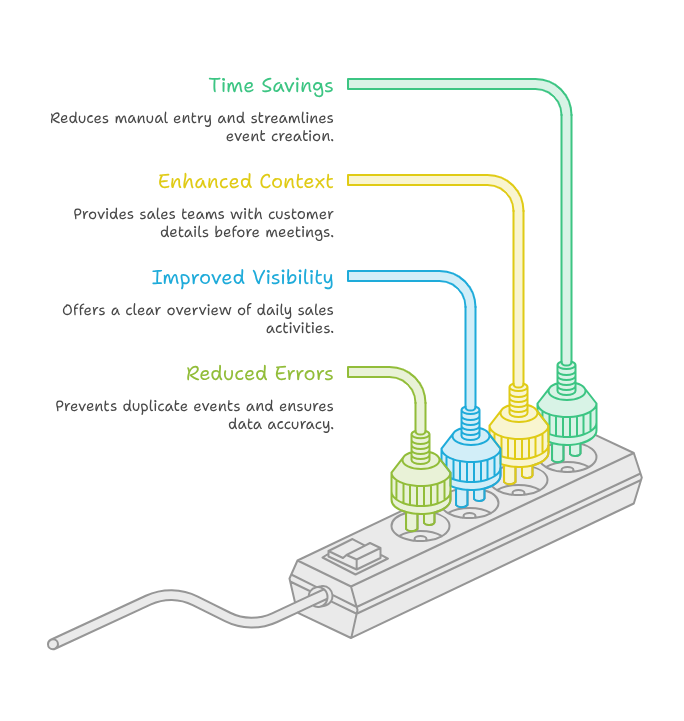
A working Google Calendar connection lets users create events in one platform and view them in another. This saves time and reduces manual entry.
Zoho CRM Google Calendar features also connect meetings with leads, contacts, and deals. Therefore, sales teams get useful customer context before every appointment.
Reliable Zoho CRM integrations improve visibility across daily sales activities. However, a broken calendar sync can cause missed calls and outdated records.
Better Sales Activity Tracking
Sales teams often manage demos, follow-ups, and customer calls throughout the day. Zoho Google Calendar Sync keeps these activities available across both platforms.
Zoho CRM Google Calendar also helps managers review scheduled work inside customer records. As a result, reporting becomes clearer and more accurate.
Less Repeated Work
Without synchronization, users may create the same event twice. This wastes time and increases the chance of mistakes.
Zoho third party integrations are built to improve productivity. Still, every integration needs correct permissions and regular checks.
Common Zoho Google Calendar Sync Problems
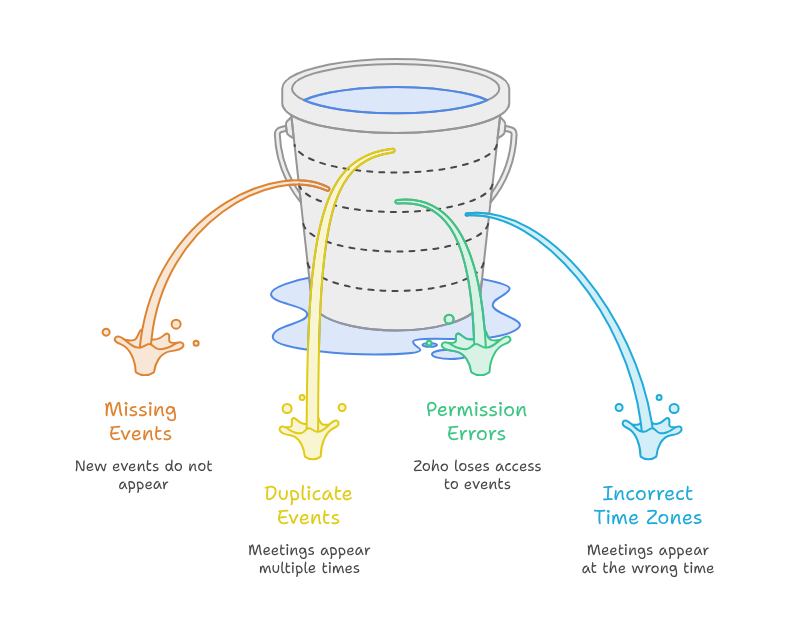
Several problems can interrupt synchronization. Some appear after setup, while others begin after security or account changes.
Events Are Missing
A common Zoho CRM sync issue happens when new events do not appear. The event may exist in Zoho CRM but remain missing from Google Calendar.
First, check whether the correct calendar is selected. Many Google accounts contain personal, shared, and business calendars.
Next, review the sync direction. One-way syncing can explain why events move in only one direction.
Duplicate Events
Duplicate meetings may appear after reconnecting an account. They can also appear when users create the same event in both systems.
To prevent duplicates, decide which platform will control event creation. Clear internal rules can reduce repeated scheduling.
Permission Errors
Google may remove access after a password change or security update. Zoho may then lose permission to read or create events.
Open the connected applications section in Google. Confirm that Zoho still has the required permissions.
If access looks incomplete, remove the connection and authorize it again. Zoho CRM integrations depend on active and valid permissions.
Incorrect Time Zones
Time zone differences can make meetings appear at the wrong time. This is common for remote teams and international businesses.
Check the time zone inside Zoho CRM. Then compare it with the Google Calendar time zone.
Zoho CRM Google Calendar scheduling works better when both platforms use matching settings.
How to Fix the Google Calendar Connection
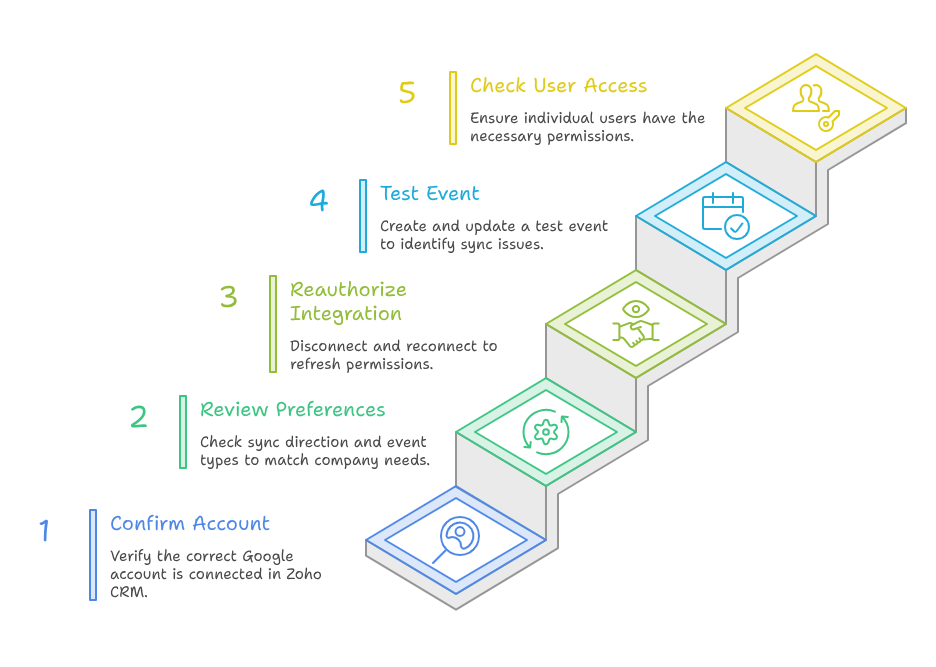
Troubleshoot the issue in a clear order. Start with basic account settings before changing advanced options.
Step 1: Confirm the Connected Account
Open the integration settings inside Zoho CRM. Check which Google account is connected.
Some users authorize a personal account instead of a business account. Zoho third party integrations only work with the approved account.
Step 2: Review Sync Preferences
Check whether the setup uses one-way or two-way synchronization. Also review which event types are included.
The configuration should match your company’s scheduling process. Sales teams often need full two-way updates.
Step 3: Reauthorize the Integration
If the settings look correct, disconnect and reconnect the account. This refreshes the permission token between both systems.
Before reconnecting, confirm that important meetings are already saved. A fresh Google Calendar connection often fixes expired access.
Step 4: Test One Event
Create one test meeting inside Zoho CRM. Add a clear title, date, and time.
Then check whether it appears in Google Calendar. Next, update the same event from Google Calendar.
Confirm whether the change returns to Zoho CRM. This test helps identify the exact Zoho CRM sync issue.
Step 5: Check User Access
An administrator may enable the integration, but individual users may still need authorization.
Review user permissions inside Zoho CRM. Then confirm the matching Google account for each salesperson.
Zoho third party integrations can fail when company settings are correct, but user access remains incomplete.
Practical Use Case: Product Demo Scheduling
Consider a software company that schedules product demos through Zoho CRM. A salesperson creates a meeting from a qualified lead record.
The event appears in Google Calendar and blocks the selected time. Therefore, the salesperson avoids another booking during that period.
Later, the customer requests a new meeting time. The salesperson updates the event in Google Calendar.
Zoho CRM Google Calendar should update the CRM activity automatically. However, the CRM still shows the old time.
This creates a serious Zoho CRM sync issue. The salesperson may join late or miss the demo.
The company checks the Google Calendar connection and finds an expired authorization token. After reconnection, the new time appears correctly.
This example shows that Zoho Google Calendar Sync supports customer service, team coordination, and sales reliability.
Best Practices for Stable Syncing
Teams should decide which platform controls scheduling. They should also avoid reconnecting accounts without checking existing events.
Zoho CRM integrations should be reviewed after password changes, employee departures, or security updates.
Keep time zones consistent across user profiles. Also, test the Google Calendar connection after every major configuration change.
Regular checks improve other Zoho third party integrations as well. Similar account and permission rules often apply across connected tools.
Conclusion
Zoho Google Calendar Sync helps businesses manage meetings, follow-ups, and customer activities more efficiently. However, incorrect settings can interrupt the process.
Most problems can be solved by checking permissions, time zones, connected accounts, and sync direction.
Zoho CRM Google Calendar works best when users follow one clear scheduling process. This reduces duplicates, missed updates, and confusion.
Zoho plays an important role in connecting sales, marketing, support, finance, and operations. However, expert setup is essential for lasting value. With iTecZone as a certified Zoho partner, you gain experienced implementation and customization support. Our developers can manage Zoho CRM integrations and complex business workflows. Therefore, iTecZone is a reliable choice as your Zoho Consultant Partner.
FAQ’s
Why is Zoho Google Calendar Sync not working?
The issue may come from expired permissions, wrong accounts, time zones, or one-way sync settings.
Why are my calendar events duplicated?
Duplicates may appear when users create events in both systems. Reconnecting the account can also repeat existing entries.
How can I fix a Zoho CRM sync issue?
Check account access, time zones, sync direction, and user permissions. Then reconnect the account and test one event.
Does Zoho CRM Google Calendar support two-way syncing?
Supported setups can allow two-way event updates. The selected synchronization options must be reviewed during configuration.
Are Zoho third party integrations secure?
They use authorized account access. However, security depends on correct permissions, active users, and regular access reviews.