A Zoho Kiosk Edit Issue can interrupt important CRM tasks without warning. A Zoho Kiosk Edit Issue may also block users from completing forms. These errors often appear during screen updates, decision steps, or record searches. As a result, teams may face delays, incomplete data, and failed automation. However, the problem becomes easier to solve after finding the exact failure point.
What Causes Kiosk Editing Errors?
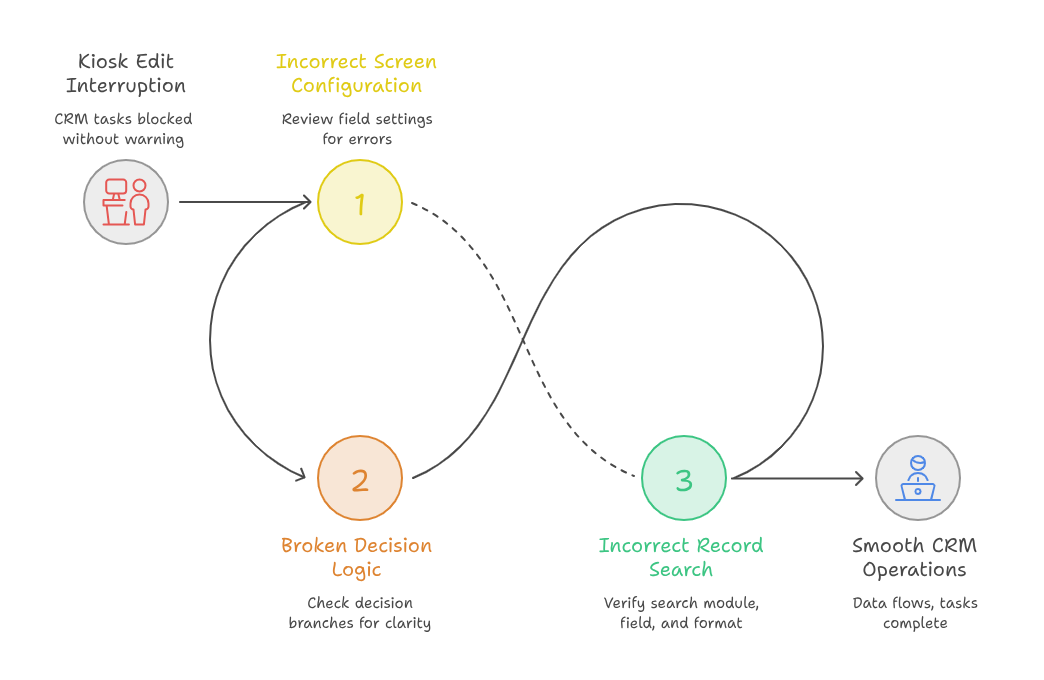
Zoho CRM Kiosk helps businesses create guided processes for users. However, one incorrect setting can affect the entire flow.
Most errors come from invalid field mapping, broken conditions, missing permissions, or incorrect search criteria.
A connected Zoho CRM Workflow may also depend on the kiosk data. Therefore, a small kiosk error can delay notifications, approvals, assignments, and follow-up tasks.
Incorrect Screen Configuration
A Screen State Error often appears when a screen contains invalid field settings. A required field may be hidden from the user. A field may also use the wrong data type. Sometimes, the screen still references a deleted CRM field.
Review every field inside the affected screen. Confirm field names, required settings, default values, and user access.
Broken Decision Logic
A Decision State Issue usually happens when conditions overlap or remain incomplete. The kiosk may not know which path to follow.
Review every decision branch from top to bottom. Each branch should have a clear purpose and expected result. Also, add a fallback route for unexpected values. This prevents the kiosk from stopping without a valid next step.
Incorrect Record Search Settings
A GetRecords Problem can happen when the kiosk searches the wrong module or field. The search value may also be empty. Sometimes, the field format does not match the submitted value.
Incorrect formats often return no record, even when the data exists.
User permissions can also cause a GetRecords Problem in Zoho CRM Kiosk. The kiosk cannot return records that the current user cannot access. Therefore, always test record searches using the affected user profile.
How to Fix the Zoho Kiosk Edit Issue
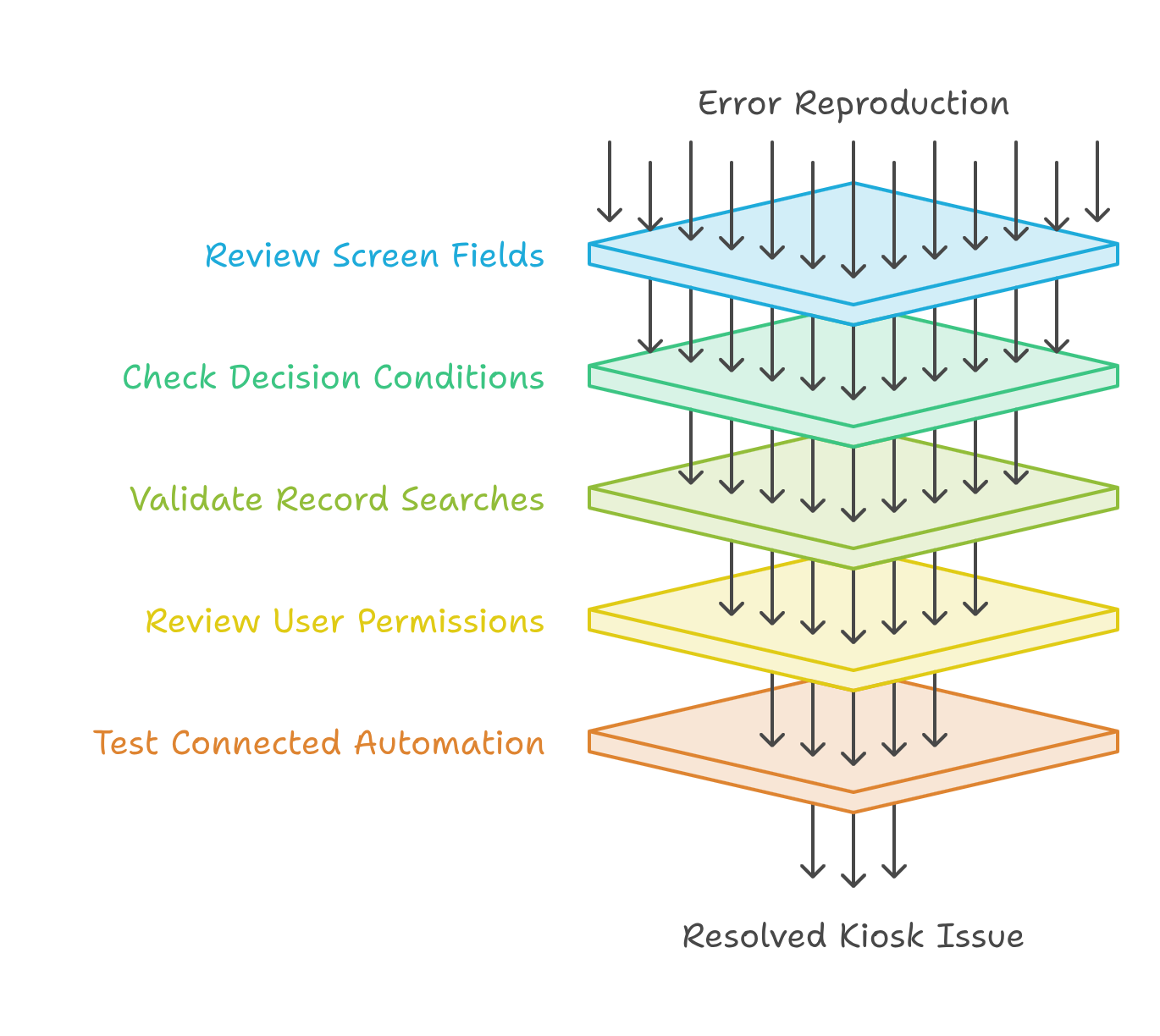
The safest approach is to review the kiosk in small sections. Avoid changing many settings at once. Otherwise, identifying the original cause becomes difficult.
Step 1: Reproduce the Error
Open Zoho CRM Kiosk and follow the same steps as the affected user. Enter the same values whenever possible. Note the exact screen where the error appears.
A consistent Screen State Error usually points to configuration. An occasional error may involve permissions, data conditions, or record ownership.
Step 2: Review Screen Fields
Check every field used on the failed screen. Confirm data types, field visibility, and required settings. Remove references to deleted or renamed fields.
After each update, test the screen again before making another change. This reduces the risk of creating another Zoho Kiosk Edit Issue.
Step 3: Check Decision Conditions
Open the decision section connected to the failed screen. Review each condition carefully. Make sure conditions do not overlap or exclude valid values.
A Decision State Issue can appear when no condition matches the submitted data. Therefore, create a fallback path where possible. This gives the kiosk a safe route during unexpected situations.
Step 4: Validate Record Searches
Review the module, field, operator, and value used in the search. Confirm that the value is not empty. Also, check whether the selected field uses the correct format.
For example, an email search must use a valid email field. A record ID search must receive the correct CRM record ID.
Step 5: Review User Permissions
Check profile permissions, field access, record sharing, and module visibility. Then test Zoho CRM Kiosk with the same profile that reported the error.
Administrators usually have wider access than standard users. Therefore, testing only through an administrator account may hide permission problems.
Step 6: Test the Connected Automation
After fixing the kiosk, test the related Zoho CRM Workflow. Confirm that records update with the correct values.
A kiosk may appear fixed while the automation still fails. End-to-end testing confirms that the complete process works correctly.
Practical Use Case Example
Consider a sales team using a kiosk for lead qualification. The form asks about budget, location, email, and service interest. It then searches existing leads before creating a new record.
The team experiences a GetRecords Problem during the email search. The kiosk searches a general text field instead of the email field. Therefore, it returns no matching record.
The next step produces a Decision State Issue. That condition expects a record ID from the failed search. Since no ID exists, the kiosk cannot select a path.
The administrator corrects the field mapping and adds a fallback route. The Screen State Error disappears after testing. Users can now complete the form without interruption.
Finally, the Zoho CRM Workflow assigns the lead to the correct salesperson. It also sends an email and creates a follow-up task.
This example shows how one incorrect field can affect several connected actions. It also explains why the entire kiosk should be tested.
Best Practices for a Reliable Kiosk
Keep each screen simple and focused. Include only the fields needed for that specific step.
Use clear names for screens, decisions, searches, and actions. Clear naming makes future troubleshooting easier.
Test empty values, unusual entries, and missing records. Regular testing can prevent another Zoho Kiosk Edit Issue.
Document field mappings, conditions, search criteria, and automation actions. This information helps administrators understand the complete process.
Review user permissions before launching a kiosk. A valid setup may still fail when users lack field or module access.
Finally, review the complete Zoho CRM Workflow after every major kiosk update. Connected automation may depend on changed fields or values.
Why Regular Kiosk Testing Matters
Kiosk processes often change as businesses introduce new fields, modules, or approval rules. These changes can affect existing logic.
For example, renaming a field may break a record search. Removing an option may also affect a decision condition.
Regular testing helps teams detect these problems before users experience them. It also protects data quality and process consistency.
Testing should include standard users, administrators, and different record types. Each profile may experience the kiosk differently.
A planned review can prevent another Zoho Kiosk Edit Issue. It also keeps CRM processes reliable as the business grows.
Conclusion
Kiosk errors usually come from screens, decisions, searches, or permissions. Therefore, every section should be reviewed separately and tested carefully.
A Screen State Error normally requires a field and visibility review. A Decision State Issue requires clear conditions and fallback paths. Record searches need correct modules, fields, formats, and permissions.
Zoho gives businesses powerful tools for sales, service, marketing, and operations. However, correct implementation is essential for stable performance and reliable automation.
With iTecZone as a certified Zoho partner, your business gets experienced implementation and customization support. Our developers can fix kiosk errors and improve your CRM processes. This makes iTecZone a trusted Zoho Consultant Partner for long-term Zoho success.
FAQs
What causes kiosk editing errors in Zoho CRM?
Common causes include incorrect fields, broken conditions, missing permissions, and invalid record searches. Testing each step helps identify the cause.
How can I fix a screen error?
Review field types, required settings, visibility, default values, and deleted field references. Then test the screen using a regular user profile.
Why does a decision step fail?
A decision step fails when conditions overlap or match no submitted value. Clear branches and a fallback route usually solve it.
Why does the kiosk fail to find existing records?
A GetRecords Problem may use the wrong module, field, value, or format. User access can also prevent records from appearing.
Can permissions affect kiosk results?
Yes. Users may lack access to certain fields, modules, or records. Always test with the affected profile.
Should automation be tested after a kiosk fix?
Yes. Kiosk values may trigger assignments, emails, tasks, or approvals. End-to-end testing confirms that every connected action works.
Can iTecZone help with kiosk customization?
Yes. iTecZone can review screens, decisions, searches, permissions, and automation. Our team also supports complete Zoho customization projects.