Keeping your digital accounts safe is more important than ever. If you use Zoho services for your business or personal projects, you likely already know that a simple password isn’t enough anymore. You need a reliable way to handle two-factor authentication (2FA) to block unauthorized access. That is where Zoho OneAuth comes in. It is the official, high-security multi-factor authentication app built by Zoho Corporation to keep your data locked down and secure.
If you are wondering exactly where to find it and how to get it running on your phone, here is a detailed guide to help you out.
Finding OneAuth on the Google Play Store
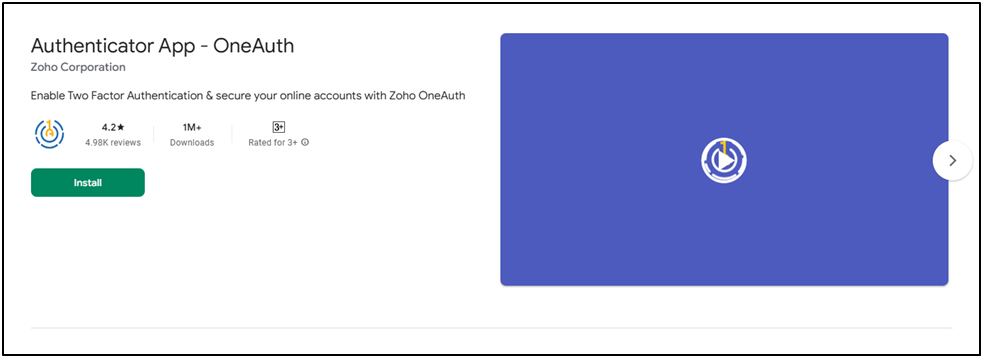
For those using an Android smartphone or tablet, getting the app is very straightforward. The Google Play Store is the safest place to download it to ensure you are getting the genuine version.
- Open the Google Play Store app on your device.
- In the search bar at the top, type “Zoho OneAuth.”
- Look for the result that lists Zoho Corporation as the developer to ensure it is the official version.
- Tap the “Install” button.
The app is lightweight and designed to work efficiently without slowing down your phone. Once installed, it provides seamless one-touch approvals, meaning you don’t even have to type in a code; you just tap “Approve” on your screen.
Downloading from the Apple App Store
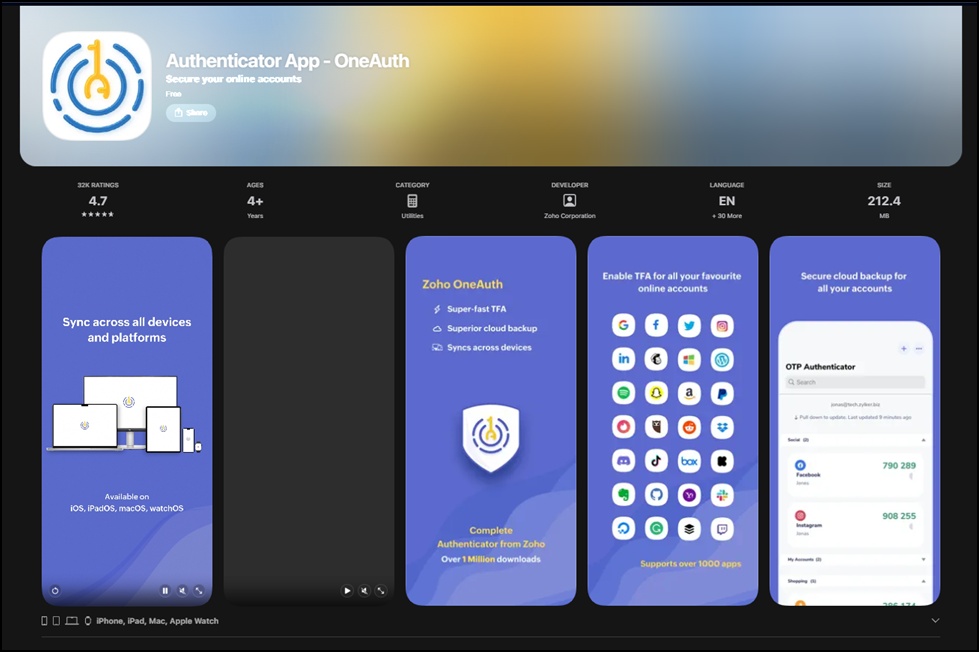
If you are an iPhone or iPad user, the process is just as easy through the Apple App Store.
- Launch the Apple App Store on your iOS device.
- Search for “OneAuth” or “Zoho OneAuth.”
- Verify the developer is Zoho Corporation.
- Tap “Get” to start the download.
The iOS version is highly rated for its clean interface and its ability to integrate with native security features. It supports biometric unlocking using FaceID or TouchID, which adds an extra layer of protection. This means even if someone gets hold of your unlocked phone, they still cannot access your 2FA codes without your biometric scan.
Why Is Everyone Talking About Zoho OneAuth?
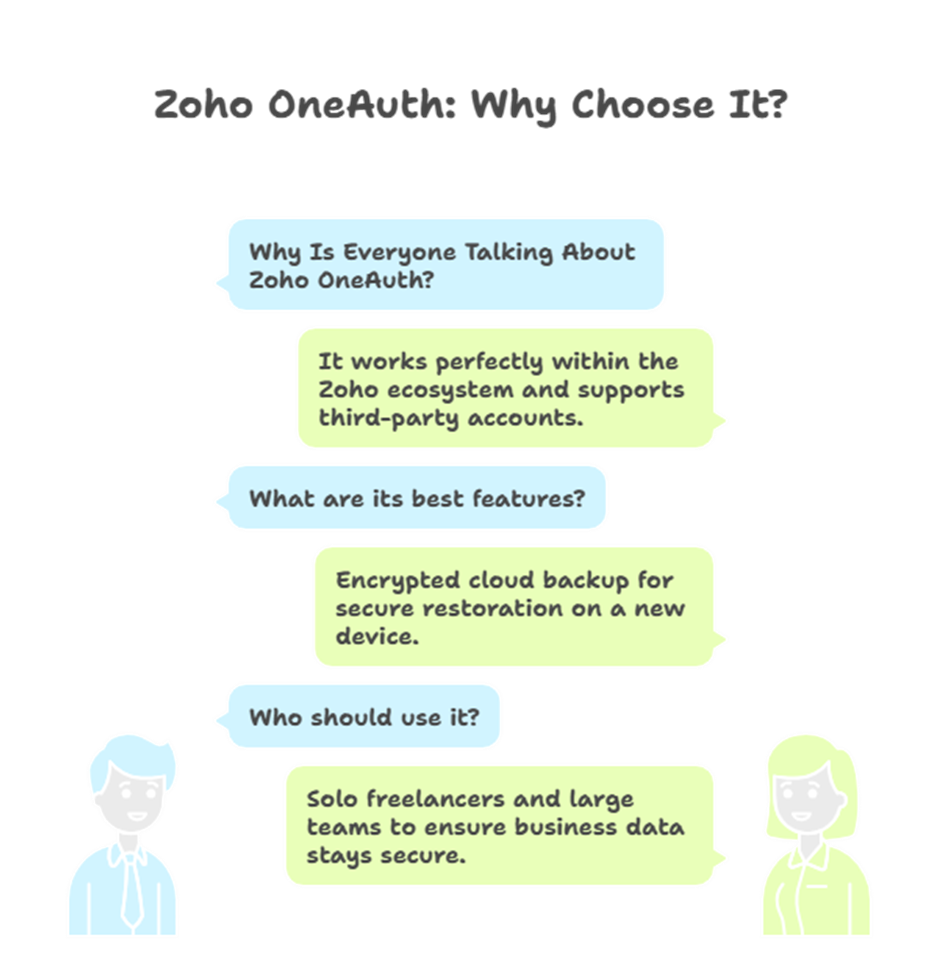
You might wonder why you should choose this app over other common authenticators. Unlike generic tools, Zoho OneAuth is built to work perfectly within the Zoho ecosystem while still supporting third-party accounts like Google, Microsoft, and Amazon.
One of its best features is the encrypted cloud backup. If you happen to lose your phone or upgrade to a new one, you don’t have to worry about being locked out of your accounts. You can securely restore your 2FA accounts on a new device. Whether you are a solo freelancer or managing a large team, having OneAuth installed via the Google Play Store or Apple App Store ensures your business data stays in the right hands.
How to Set It Up for the First Time
Once you have downloaded the app, setting it up only takes a minute:
- Sign In: Use your primary Zoho credentials to log in.
- Choose Your Mode: Decide if you want to use Push Notifications (the easiest way), QR Code scanning, or Time-based OTPs.
- Enable Backup: Don’t forget to turn on the backup feature so your settings are saved to the cloud securely.
Stay Connected and Informed
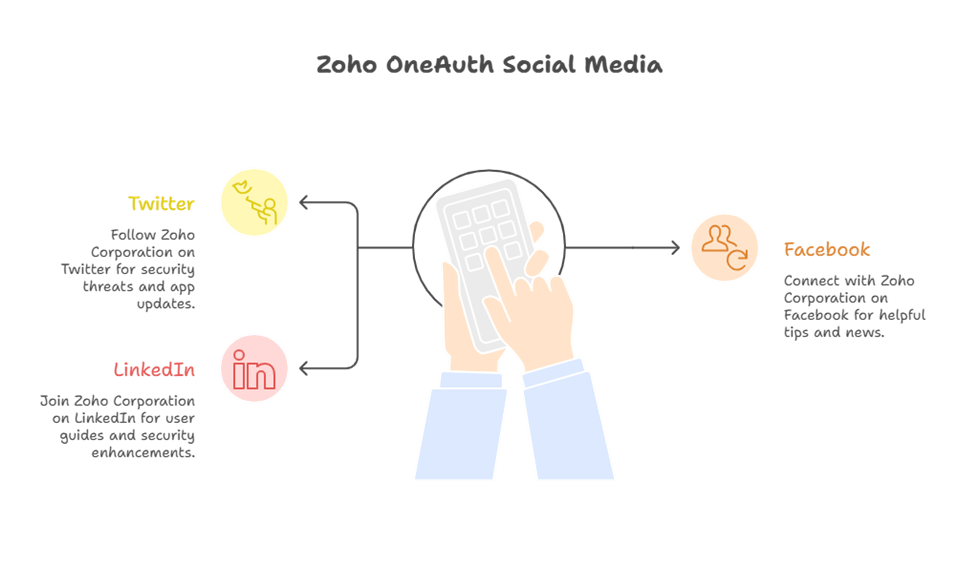
Zoho Corporation is very active in keeping its community informed about the latest security threats and app updates. To make sure you are using the app to its full potential, it is a good idea to follow their official updates. You can find helpful tips, user guides, and news about Zoho OneAuth by following their official pages on Twitter, Facebook, and LinkedIn. Staying connected on these platforms is the best way to learn about new features or security enhancements as soon as they are released.
Frequently Asked Questions (FAQ)
1. Is Zoho OneAuth free to use?
Yes, the app is completely free. Zoho Corporation provides Zoho OneAuth as a free security tool to ensure all users can protect their data without any extra cost. There are no hidden fees or subscriptions required for the standard authentication features.
2. Can I use OneAuth for non-Zoho accounts like Google or Facebook?
Absolutely. While it is built by Zoho, it works as a standard authenticator. You can add any service that supports 2FA via QR code, including your accounts on Twitter, Facebook, and LinkedIn.
3. What happens if I lose my phone?
This is where the “Passphrase” feature is vital. If you enabled cloud backup in the settings, you can install the app on a new device from the Google Play Store or Apple App Store and use your secret passphrase to restore all your synced accounts instantly.
4. Does OneAuth work offline?
Yes. If you don’t have an internet connection to receive a push notification, you can use the time-based OTP (One-Time Password) generated inside the app. These codes refresh every 30 seconds and work perfectly even when your phone is in airplane mode.
5. Can I use OneAuth on multiple devices at the same time?
Yes, you can. You can install Zoho OneAuth on your primary phone, a tablet, and even your smartwatch. As long as you are signed in and have sync enabled, your authentication data will stay updated across all your devices.