Security is no longer just a luxury for businesses; it is a necessity. As we move more of our operations to the cloud, managing multiple passwords becomes a headache for employees and a risk for owners. This is where Single Sign-On (SSO) comes in, and Zoho OneAuth is leading the charge in making this process both simple and incredibly secure.
If you are looking to streamline how your team accesses your website and internal tools, setting up a unified login system is the best move you can make. By using Zoho OneAuth alongside powerful identity providers like Microsoft Entra, you can create a seamless environment where one login opens all the right doors.
Why Choose Zoho OneAuth?
Source: Zoho
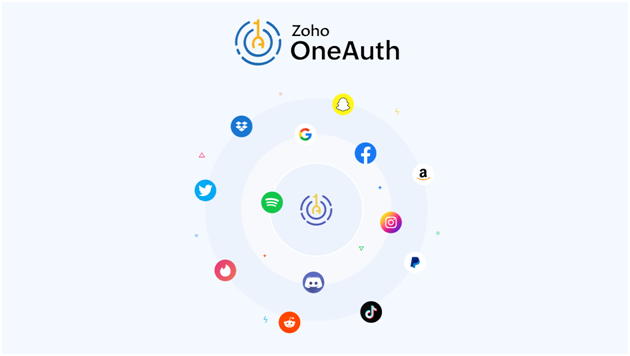
Before we jump into the “how-to,” it is worth noting why this specific tool matters. Zoho OneAuth is more than just a code generator. It offers biometric authentication, push notifications, and even offline access. When you integrate it with Microsoft Entra, you are essentially combining the massive infrastructure of Microsoft Entra with the user-friendly interface of Zoho.
Beyond simple convenience, Zoho OneAuth provides a layer of security that traditional passwords cannot match. It supports “Restricted Sign-in,” which prevents unauthorized access even if your primary login details are leaked. For companies already utilizing the Zoho ecosystem, this integration is native, meaning less friction for your staff and better data oversight for your IT department.
Feature Comparison: Zoho OneAuth vs. Microsoft Entra
While both tools are powerhouses in the identity management space, they often serve different roles in your security stack. Here is how they compare:
| Feature | Zoho OneAuth | Microsoft Entra (ID) |
| Primary Role | Multi-Factor Authenticator (MFA) | Identity Provider (IdP) & Directory |
| Passwordless Login | Yes (Push, QR, Biometric) | Yes (Windows Hello, FIDO2) |
| Offline OTP | Supported | Supported |
| Device Management | Built-in (Monitor & Revoke) | Advanced (Conditional Access) |
| Best For | User-facing MFA & Zoho users | Enterprise Directory Management |
Step-by-Step: Setting Up SSO with OneAuth

Source: Zoho
Setting up SSO might sound like a job only for high-level engineers, but if you follow these steps, you can get the foundation laid quite quickly.
1. Prepare Your Identity Provider
Most modern businesses already use Microsoft Entra (formerly Azure AD) to manage their staff identities. Your first step is to log into your Microsoft Entra portal and register your website as an application. This tells Microsoft that your site is a “trusted friend” that will be asking for user verification. Make sure you take note of the Application ID and the Redirect URIs, as these are vital for the connection.
2. Configure Zoho as the Service Provider
Once your identity provider is ready, you need to head over to your Zoho admin console. Here, you will find the SAML (Security Assertion Markup Language) settings. You will need to copy the Metadata URL from Microsoft Entra and paste it into the Zoho settings. This creates a secure “handshake” between the two systems. During this stage, you will also map user attributes to ensure that when a user logs in via Microsoft Entra, their profile information carries over correctly to your website.
3. Enable OneAuth for Your Users
Now that the connection is live, you want to ensure that users aren’t just using a password, but are also verified via Zoho OneAuth. In the Zoho security settings, enable Multi-Factor Authentication (MFA) and select OneAuth as the primary method. This ensures that even if someone manages to steal a password from Microsoft Entra, they still can’t get in without the physical device running the OneAuth app. You can also enforce specific policies, such as requiring a fingerprint or face ID to approve a request.
4. Testing the Workflow
Before rolling this out to the whole team, try logging in yourself. You should be redirected from your website to a Microsoft Entra login page. After entering your credentials, your phone should buzz with a Zoho OneAuth notification asking you to “Approve” the login. Once you tap it, you’re in. It is always a good idea to test this on both desktop and mobile devices to ensure the user experience is consistent.
Troubleshooting Common Setup Issues
Even with a straightforward process, you might run into a few hurdles. One common issue is a “SAML Signature Mismatch.” This usually happens if the certificate provided by Microsoft Entra hasn’t been properly uploaded to Zoho. Always double check that you are using the most recent certificate and that your system clocks are synchronized.
Another frequent problem is user provisioning. If a user exists in Microsoft Entra but hasn’t been created in your Zoho directory, the SSO login might fail. Enabling “Just-In-Time” (JIT) provisioning within your Zoho settings can solve this by automatically creating user accounts the first time they log in via SSO.
Frequently Asked Questions (FAQ)
1. Can I use Zoho OneAuth without an internet connection?
Yes. While push notifications require data, the app generates Time-based One-Time Passwords (TOTP) that work completely offline.
2. Does Zoho OneAuth work with non-Zoho accounts?
Absolutely. You can use it as a standard authenticator for Google, Facebook, and any other site that supports QR code MFA setup.
3. What happens if I lose the phone with my OneAuth app?
Zoho provides backup recovery codes and a “Passphrase” feature. As long as you have saved your recovery details, you can restore your accounts on a new device.
4. Is Microsoft Entra required for OneAuth to work?
No, OneAuth can work independently for Zoho logins. However, integrating it with Microsoft Entra is a best practice for businesses that want a centralized “Single Sign-On” experience.
5. Is there a limit to how many accounts I can add to OneAuth?
There is no practical limit. You can manage multiple Zoho accounts and hundreds of third-party 2FA accounts within the same app.